
BIOS boot order is the list your computer follows when it starts up, deciding which drive it tries to load an operating system from first. When you press the power button, the firmware — the low-level software built into the motherboard — checks each device in the order listed: usually the hard drive or SSD first, then perhaps a USB stick, a DVD drive, or the network. If the first device has a bootable system, the computer starts from it and stops looking. You only need to change this order when you want the computer to start from something else — most often a USB installer for a fresh operating system, or a recovery drive. Done carefully, it is a safe, reversible setting; done carelessly, it can leave a machine that appears not to start at all.
TL;DR / Key Takeaways
- Boot order is the sequence of drives your PC checks for an operating system at startup.
- Change it only when you need to boot from USB, DVD, or another drive.
- The setting lives in BIOS/UEFI setup, reached by a key pressed during startup.
- Moving the wrong device to the top is reversible — set it back the same way.
- On modern PCs, Secure Boot and fast startup can block USB booting; both have safe fixes.
What Is BIOS, and What Is UEFI?
BIOS (Basic Input/Output System) is the traditional firmware that wakes up your hardware and hands control to the operating system. On computers made in roughly the last decade, BIOS has been replaced by UEFI (Unified Extensible Firmware Interface), which does the same job with a mouse-friendly interface, support for larger drives, and security features like Secure Boot. People still say “BIOS” for both, and the boot-order setting exists in both — the screens just look different.
The key idea is the same either way: before any operating system loads, the firmware runs a short checklist of hardware, then looks for something bootable. The boot order is that checklist’s sequence. It does not change your files or your operating system; it only changes where the computer looks first.
Why Would You Change the Boot Order?
There are only a few common reasons, and recognising yours keeps the change purposeful:
Installing or reinstalling an operating system. You created a bootable USB stick with Windows, Linux, or a recovery tool, and the PC must boot from the stick instead of the installed system.
Running a recovery or diagnostic tool. Rescue disks, disk-cloning tools, and hardware diagnostics all boot from their own media, so the USB or DVD must come first.
Booting a second operating system. Some people keep another system on a separate drive or stick and choose it by changing the order, though most dual-boot setups use a boot menu instead (see below).
If none of these applies, leave the order alone. There is no performance benefit to changing it, and a forgotten USB stick left in the port can cause a confusing “no bootable device” message on the next restart.
How Do I Change Boot Order Safely?
Step 1: Prepare before you restart
Have your bootable USB or DVD ready and plugged in before you start, so it appears in the list. Note your current order if you can see it — a phone photo of the screen is a simple safety net.
Step 2: Enter BIOS/UEFI setup
Restart the computer and press the setup key repeatedly as soon as the manufacturer’s logo appears. The key varies: Delete and F2 are most common on desktops, F2 or F10 on many laptops, and some brands use F12 or Esc. The logo screen usually shows the key briefly (“Press DEL to enter Setup”). If Windows loads instead, you pressed too late — restart and try again. On Windows 10 and 11 you can also reach UEFI from Settings, then Update & Security (or System), then Recovery, then “Restart now” under Advanced startup, then Troubleshoot, then UEFI Firmware Settings.
Step 3: Find the Boot section
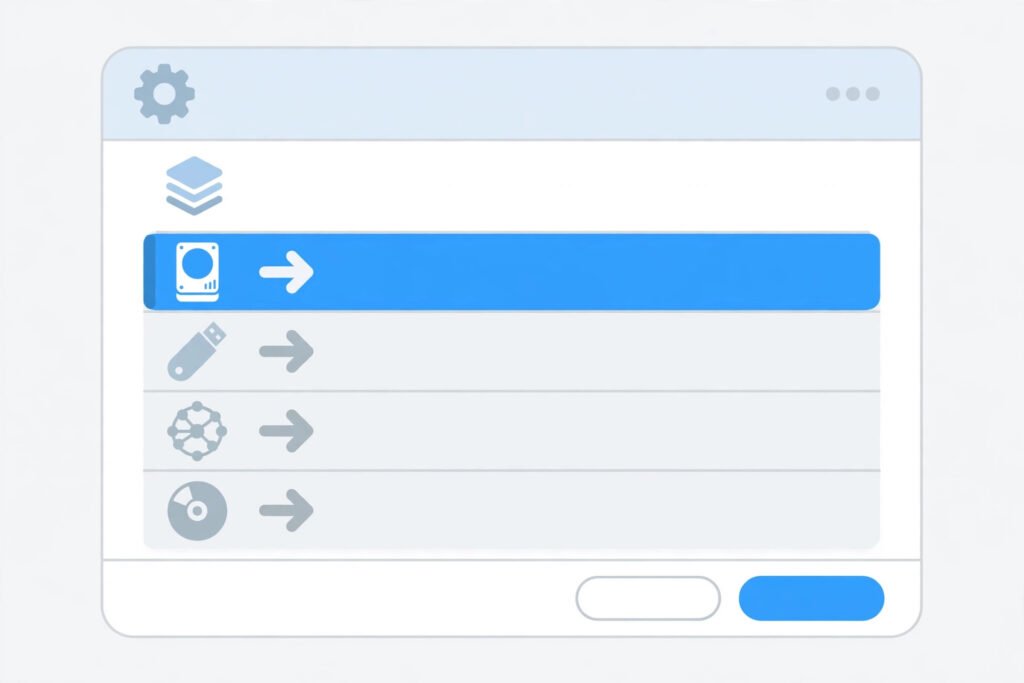
Look for a tab or menu called Boot, Boot Order, or Boot Priority. You will see a list of devices: your SSD or hard drive (often by model name), USB devices, optical drive, and possibly a network entry.
Step 4: Move your device to the top
Use the on-screen keys — usually the arrow keys plus +/-, or drag with the mouse in UEFI — to move your USB stick or DVD drive to the first position. Do not remove or disable your main drive; you are only changing the order, not deleting anything.
Step 5: Save and exit
Choose “Save & Exit” (often F10). The computer restarts and should now boot from your chosen device. If it does not, re-enter setup and check that the device is listed and first — some USB sticks only appear when plugged in before startup.
Step 6: Put it back afterwards
Once you have finished installing or recovering, re-enter setup and restore the original order, with your main drive first. This prevents the next restart from stalling on a forgotten USB stick. Alternatively, use the one-time boot menu (next section) and skip this step entirely.
Is There an Easier Way? The One-Time Boot Menu
Most PCs offer a one-time boot menu that changes the boot device for a single startup without touching the saved order. It is usually F12, F8, or Esc during startup, and it shows a list of bootable devices to pick from. If you only need to boot from USB once — the common case — use this menu instead of changing the order. It avoids the forgotten-USB problem completely and is the safest option for beginners.
What If the USB Device Does Not Appear?
Three common blockers, in order of likelihood:
Fast startup / fast boot. A Windows feature that skips full hardware initialisation can hide USB devices from the boot list. Disable Fast Startup in Windows power options, or fully shut down (not restart) before trying.
Secure Boot. A UEFI security feature that only allows signed operating systems to boot. Official Windows and major Linux installers are signed and usually fine, but some rescue tools are not. If your stick is rejected, you can temporarily disable Secure Boot in the same Boot or Security section — and re-enable it afterwards.
Legacy vs UEFI mode. A stick created for one mode may not appear under the other. If your stick was made as a UEFI installer, make sure the firmware is in UEFI mode (not Legacy/CSM), and vice versa. When in doubt, recreate the stick with a tool that supports UEFI, such as the official media creation tool for your operating system.
The guide to what is cache explains a similar “the machine is using a saved copy” problem — a stale setting can make a computer behave unexpectedly even when nothing is broken — and the guide to what is an algorithm explains step-by-step procedures in general, which is exactly what a boot sequence is.
Checklist: Changing Boot Order Without Trouble
- Bootable USB or DVD is plugged in before startup.
- You know the setup key for your machine (Delete, F2, F10, or similar).
- You photographed or noted the original order.
- You moved only the order — you did not disable or remove any drive.
- You saved and exited, and the machine booted from the chosen device.
- Afterwards, you restored the original order or used the one-time boot menu.
- Secure Boot is re-enabled if you temporarily disabled it.
Summary
BIOS boot order is simply the sequence your PC checks for an operating system when it starts. Changing it is a routine, reversible task: enter setup, move your USB or DVD to the top, save, and restore the order when you are done. For a one-off boot, the one-time boot menu is even safer. The problems people hit — a missing USB entry, a Secure Boot rejection, a forgotten stick — all have straightforward fixes, and none of them touches your files.
Frequently Asked Questions
What is BIOS boot order?
BIOS boot order is the sequence of devices — hard drive, SSD, USB stick, DVD drive, network — that your computer checks, in order, for an operating system when it starts. The first bootable device found is the one that loads.
How do I change boot order?
Restart and press the setup key (often Delete or F2) during startup, find the Boot section, move your chosen device to the top of the list, save, and exit. For a single boot, use the one-time boot menu (often F12) instead, which leaves the saved order unchanged.
Can changing boot order harm my PC?
Changing the order alone does not harm files or hardware. The worst common outcome is a machine that tries to boot from an empty USB stick and reports no bootable device — fixed by removing the stick or restoring the original order in setup.
Why does my USB stick not appear in the boot list?
Usually because fast startup skipped device detection, Secure Boot rejected the stick, or the stick was made for a different firmware mode (UEFI versus Legacy). Disable fast startup, plug the stick in before starting, and check the firmware mode matches how the stick was created.
Should I leave USB first in the boot order permanently?
No. Leaving USB first means any forgotten bootable stick can stall the next startup. Restore your main drive to the top after you finish, or use the one-time boot menu for single boots.