
A cache (pronounced “cash”) is a temporary store of copies of data your device, browser, or app has already fetched, kept close at hand so it does not have to fetch the same thing again. When you revisit a website, your browser can reuse saved images, styles, and scripts instead of downloading them all over again. That reuse is why familiar pages open faster and use less data. Clearing the cache deletes those saved copies, forcing everything to be downloaded fresh next time.
Table of Contents
TL;DR / Key Takeaways
- Cache means saved copies of things you have already loaded, stored for quick reuse.
- A cache hit reuses a saved copy; a cache miss fetches the data again.
- Cache speeds up repeat visits, but it can also show an outdated page.
- Clear cache for a stale or broken page — not daily, and not for a slow connection.
- Clearing cache alone does not delete passwords, bookmarks, photos, or downloads.
What Is Cache in Simple Terms?
Think of cache like a desk drawer for things you use every day. The first time you need something, you walk to the storeroom to get it. The next time, you simply open the drawer. The item has not changed; you have just put a copy somewhere convenient.
That is what happens on your devices. The first time you open a website, your browser downloads its logo, fonts, layout files, and images. Saving copies locally means the second visit needs far fewer downloads. Apps do the same, and websites store copies on servers worldwide so visitors are served from a nearby copy. Cache is temporary: copies are replaced, updated, or deleted when no longer useful.
How Does Cache Work?
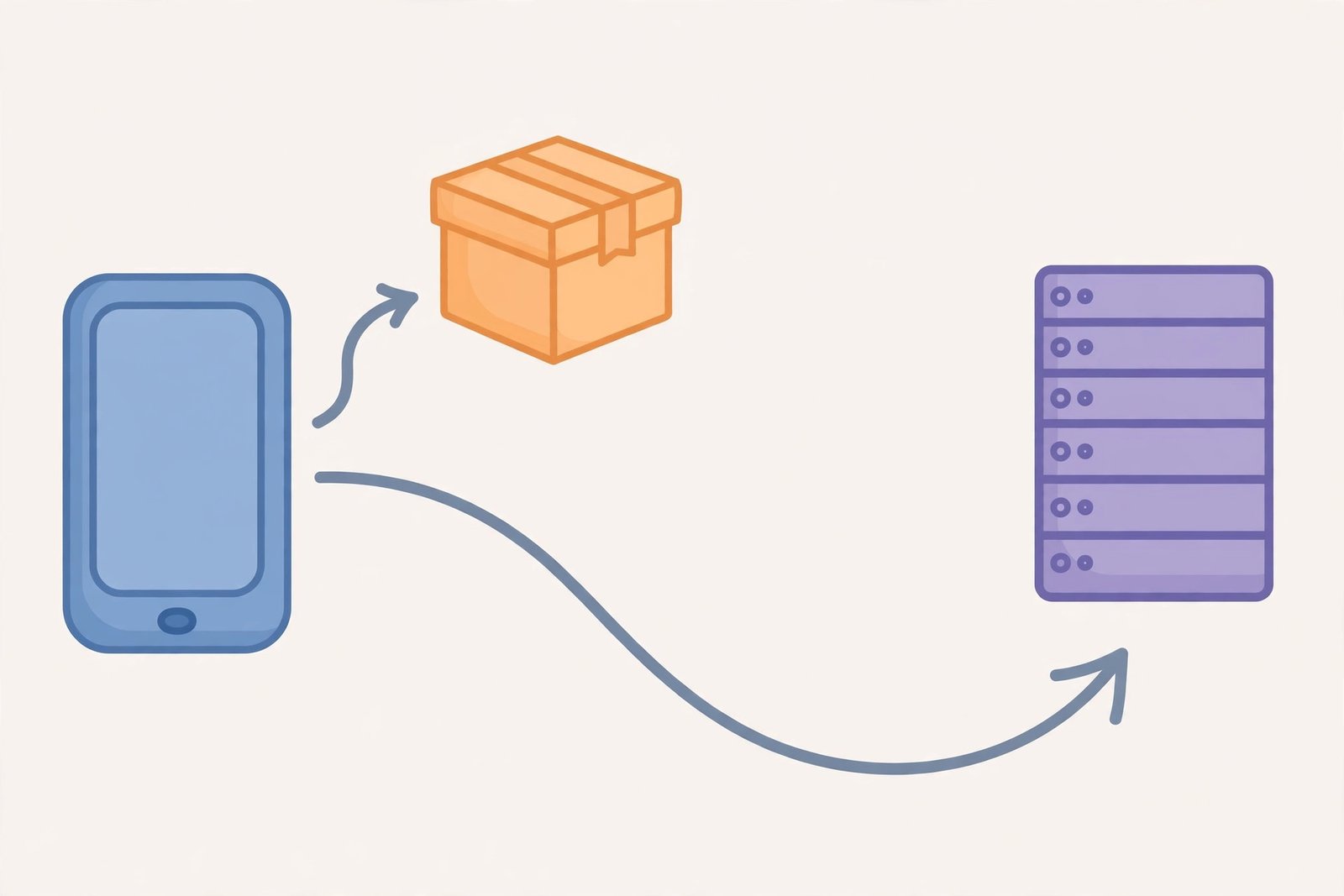
Each time your browser or app needs a piece of data, it checks the cache first. If a usable copy is there, it uses it. If not, it fetches the original and may store a copy for next time.
What Is a Cache Hit and a Cache Miss?
A cache hit is when the requested data is found in the cache and reused. This is the fast path: less downloading and less waiting. A cache miss is when the data is not in the cache — because it was never stored, it has expired, or it was cleared — so the system must fetch it from its original source. A miss is slower, but it guarantees the freshest version. Good caching balances speed against freshness, so cached items carry an expiry rule.
What Are the Main Types of Cache?
| Type of cache | What it stores | Why it helps |
|---|---|---|
| Browser cache | Images, styles, scripts, page files | Repeat visits load faster, use less data |
| App cache | Images, feeds, recently viewed content | Apps open quickly, even on slow connections |
| Server and CDN cache | Pages and files for many visitors | Pages reach visitors faster, wherever they are |
| CPU cache | Instructions and data in use | Programs run faster, without waiting for memory |
| DNS cache | Recent website-name-to-address lookups | Sites start loading without repeating a lookup |
Browser cache is the one you will clear most often. Server and CDN caches are managed by website owners, not visitors.
Why Do I Sometimes See an Old Version of a Website?
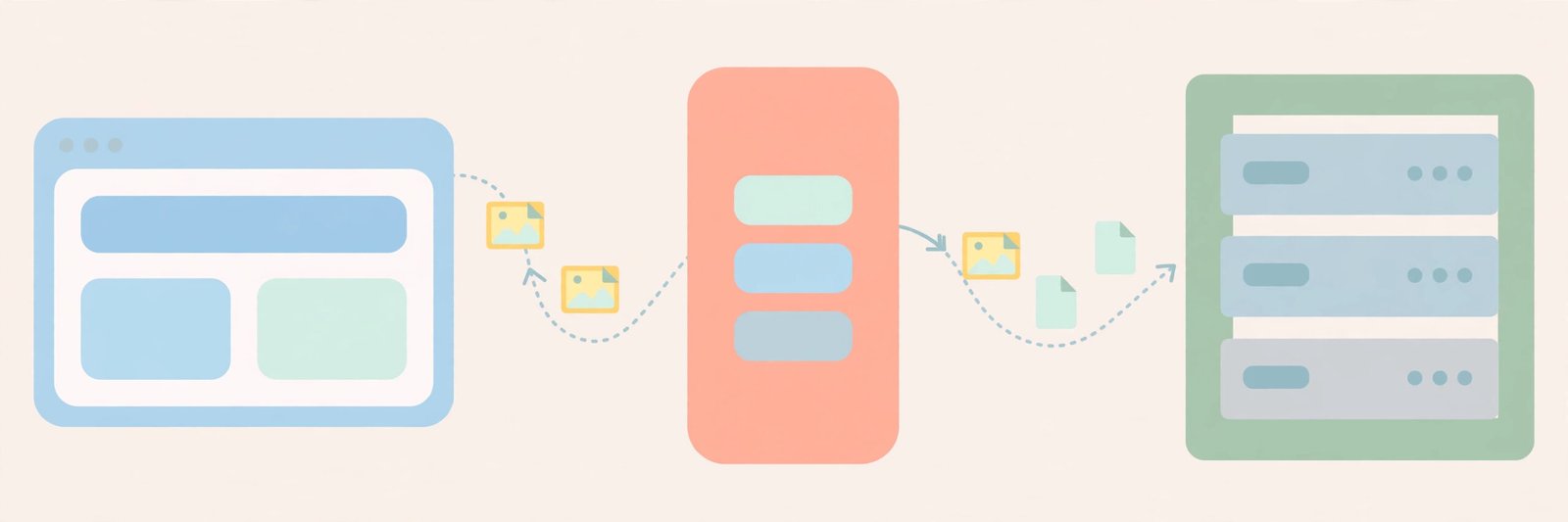
If your browser still holds a saved copy of a page’s files, it may show that copy instead of the new version until it expires. The same can happen further up the chain: if a website’s delivery network is still serving a cached copy, visitors may briefly see different versions.
Before assuming something is broken, try a hard refresh, which bypasses the browser cache for that page, or a private window, which starts with an empty cache. If the old version persists, the stale copy is probably held by the site itself. Clearing your own cache cannot force a website’s server cache to update.
Is My Problem Actually the Cache?
Clearing cache is a useful troubleshooting step, not a cure-all. Use this decision guide first:
Clearing cache may help when: one site looks broken, loads without its proper layout, or keeps showing old content; an app repeatedly shows stale images after a restart; or a site misbehaves only after an update.
Clearing cache probably will not help when: nothing loads at all, every site is slow, or videos buffer constantly. Those symptoms point to your connection, router, or the site being down. If your connection is slow, deleting saved copies makes the next load slower. A plain-language guide to what is 5G explains how a newer mobile network differs from older ones, and why coverage and signal still matter.
Try these first: hard-refresh the page, try a private window, restart the app or browser, and check whether the problem happens on another device or network. If it happens everywhere, it is almost certainly not your cache.
How Do I Clear Cache Safely?
Clear cache deliberately, rather than wiping everything at once. Menu names vary by browser and device.
How to Clear Browser Cache
- Open settings or history and find “Clear browsing data” or “Privacy”.
- Choose a time range — “All time” clears everything; a shorter range suits a recent problem.
- Tick “Cached images and files” only; leave cookies, passwords, and history unticked.
- Confirm, restart the browser, then revisit the site and let it load fully once, so fresh copies can be stored.
How to Clear App Cache on Your Phone
- Open Settings, go to Apps, and choose the misbehaving app.
- Look for Storage, then choose “Clear cache”.
- Do not choose “Clear data” or “Clear storage” unless you intend to reset the app — that also removes settings and saved logins.
- Reopen the app. The first load may be slower while content is cached again.
One warning many guides skip: on an iPhone, Safari has no cache-only button. Its “Clear History and Website Data” option also removes history and cookies, so it logs you out of sites. Test the page in a private window first if you want to avoid that.
Cache vs Cookies vs History: What Is the Difference?
| Item | What it is | Clearing it removes |
|---|---|---|
| Cache | Saved copies of files for faster reuse | Saved images, styles, scripts; sites reload more slowly next time |
| Cookies | Small data sites store to remember you | Saved logins, preferences, shopping baskets |
| History | A record of pages you have visited | Your browsing record only; it does not affect loading speed |
| App data | An app’s settings, accounts, saved content | Far more than cache — effectively resets the app |
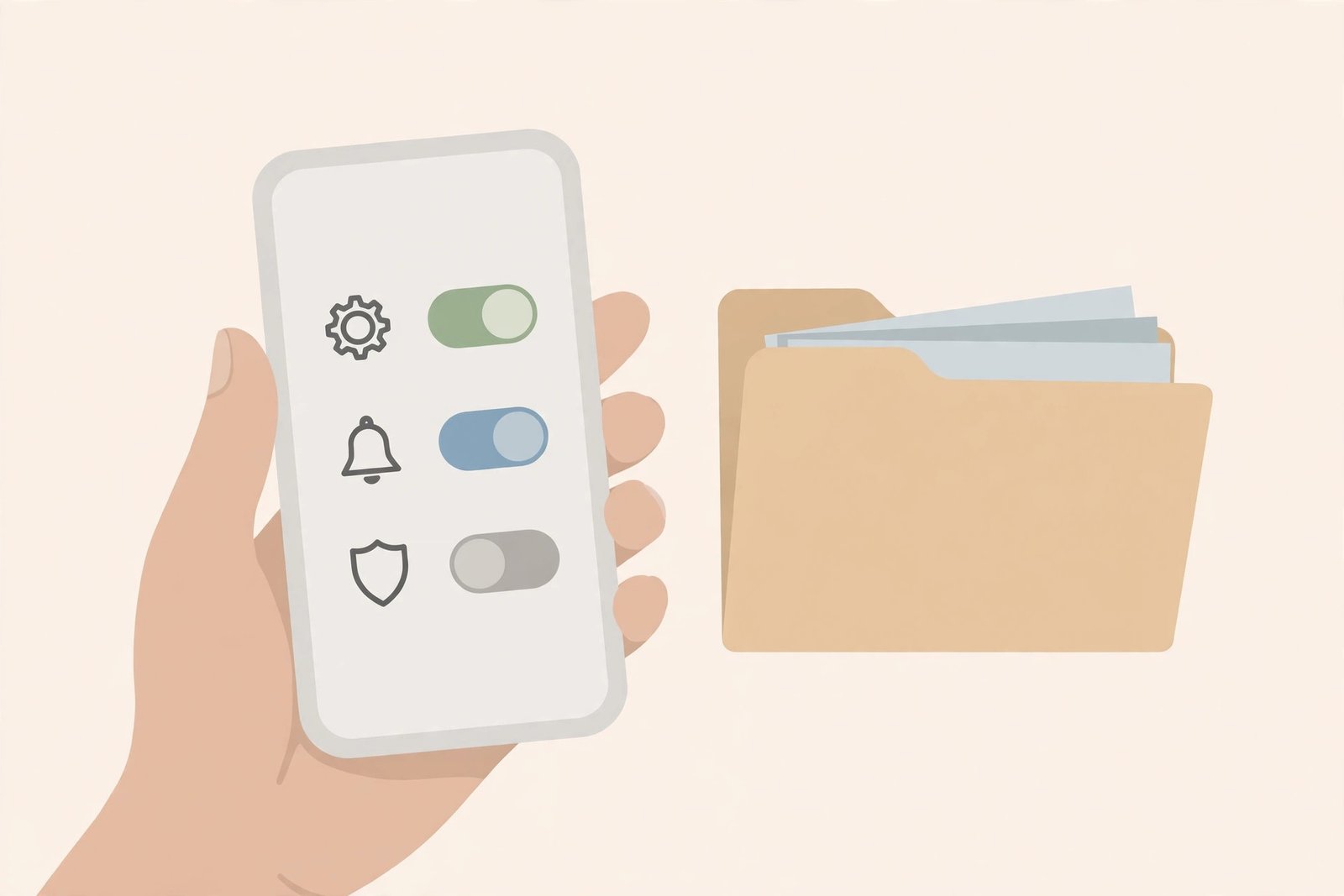
Clearing cache alone will not log you out; clearing cookies will, because cookies are how sites recognise you. Clearing cache is also not a reliable way to free up storage: it simply rebuilds as you browse.
Checklist: Before You Clear Your Cache
- Is the problem on one site or app, not your whole connection?
- Have you tried a hard refresh or a private window first?
- Are you ticking “cached images and files” only — not cookies, history, or app data?
- On an iPhone, do you accept that Safari’s clear option also removes history and cookies?
- After clearing, have you reloaded the page once and let it finish before judging the result?
If the issue returns straight away, look elsewhere: your connection, a browser extension, an outdated app, or the site itself. The guide to what is an algorithm explains step-by-step software decisions, and the introduction to what is Python shows how such ideas become working code.
What If Clearing Cache Does Not Fix It?
Check your connection and router, and try another network. Then update the app or browser, and try with extensions disabled, since one faulty extension can break layouts in ways that look like a cache problem. Check for a reported outage, too. If only one account is affected, signing out and back in — different from clearing cache — may reset a faulty saved state. Otherwise, the fault is most likely on the site’s side.
Summary
Cache is a collection of saved copies kept close so they can be reused instead of fetched again. That explains faster repeat visits — and why you sometimes see an old page, and why clearing cache can fix a broken layout while making the next load slower. Treat it as a targeted fix: diagnose first, try a hard refresh or private window, and clear cached files only.
Related Reading
Frequently Asked Questions
What is cache in simple words?
Cache is a temporary store of copies of data you have already loaded, such as website images and files, kept so your device can reuse them quickly.
Does clearing cache delete my photos or passwords?
No. Clearing browser cache removes saved website files only — not photos, downloads, bookmarks, or passwords. Clearing cookies logs you out of sites, and clearing app data can reset an app, so choose the cache option specifically.
Will clearing cache make my device faster or free up much storage?
Not reliably. It can fix a specific loading problem, but the next visit is slower because files must be downloaded again, and the cache rebuilds as you browse.
How often should I clear my cache?
There is no fixed schedule. Clear it when a site or app shows outdated or broken content, or as a troubleshooting step — not daily, or you simply re-download the same files over and over.
Why does a website still show old content after I clear my cache?
The stale copy may be held on the website’s server or delivery network, not in your browser, so it appears only once that cache refreshes. Or the page may not have been updated yet, or an app cache may still hold the old version.