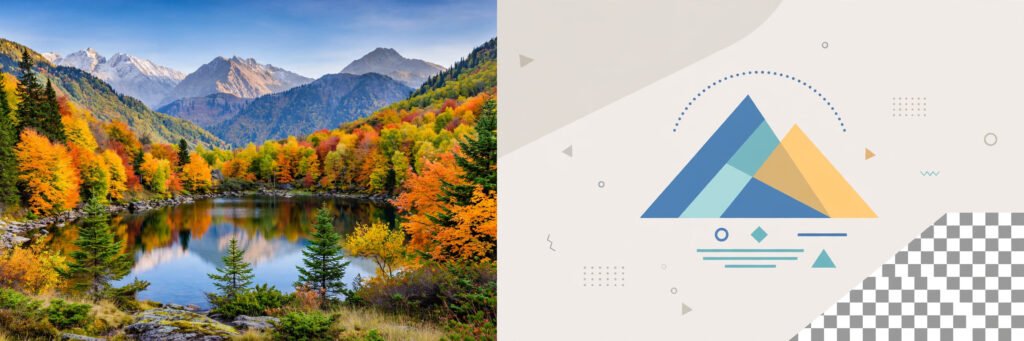
Use JPG for photographs and PNG for graphics that need sharp edges or a transparent background. JPG keeps photos small by discarding some detail, while PNG keeps every pixel exactly and can leave parts see-through. The wrong choice can make a logo fuzzy or a transparent graphic appear inside a white box. This guide explains the difference, gives a reusable decision order, and shows how to convert safely.
Table of Contents
TL;DR / Key Takeaways
- JPG is best for photos: smaller files and smooth colours, but no transparency and quality is lost on every re-save.
- PNG is best for logos, icons, screenshots and text graphics: sharp edges, no loss on re-saving, and full transparency.
- Converting JPG to PNG does not improve quality or create transparency. It only stops further lossy damage.
- Converting PNG to JPG removes transparency. Transparent areas are filled with a solid colour, usually white.
- Keep a master file. Edit the original or a PNG master, and export JPG or PNG copies for final use.
What Is JPG, and Why Is It Good for Photos?
JPG, also written JPEG, stands for Joint Photographic Experts Group. It is a raster format — a grid of pixels — designed for photographs: many colours, soft gradients, skin tones and landscapes.
JPG uses lossy compression: it makes a file smaller by throwing away some image data that is hard for the eye to notice. At a sensible quality setting, a photo still looks good; at a very low setting, you see blocky patches and fuzzy halos around sharp edges and text. That is why JPG is everywhere: the same photo as PNG is generally much larger, with no visible benefit for most viewers.
What Is PNG, and Why Is It Good for Graphics?
PNG stands for Portable Network Graphics. It is also a raster format, but it uses lossless compression: it shrinks the file without throwing away pixel data, so repeated editing and saving does not degrade it.
PNG has two strengths JPG lacks. It keeps sharp edges sharp, so text, lines and flat colour areas stay clean. And it supports transparency through an alpha channel: parts can be fully or partly see-through, so a logo can sit cleanly on a coloured background without a white box. The cost is file size: for a photograph, PNG is generally much larger. One refinement helps: PNG-8 uses a limited palette for simple graphics, while PNG-24 supports millions of colours plus transparency. If PNG-8 looks fine, use it; if colours band, move up to PNG-24.
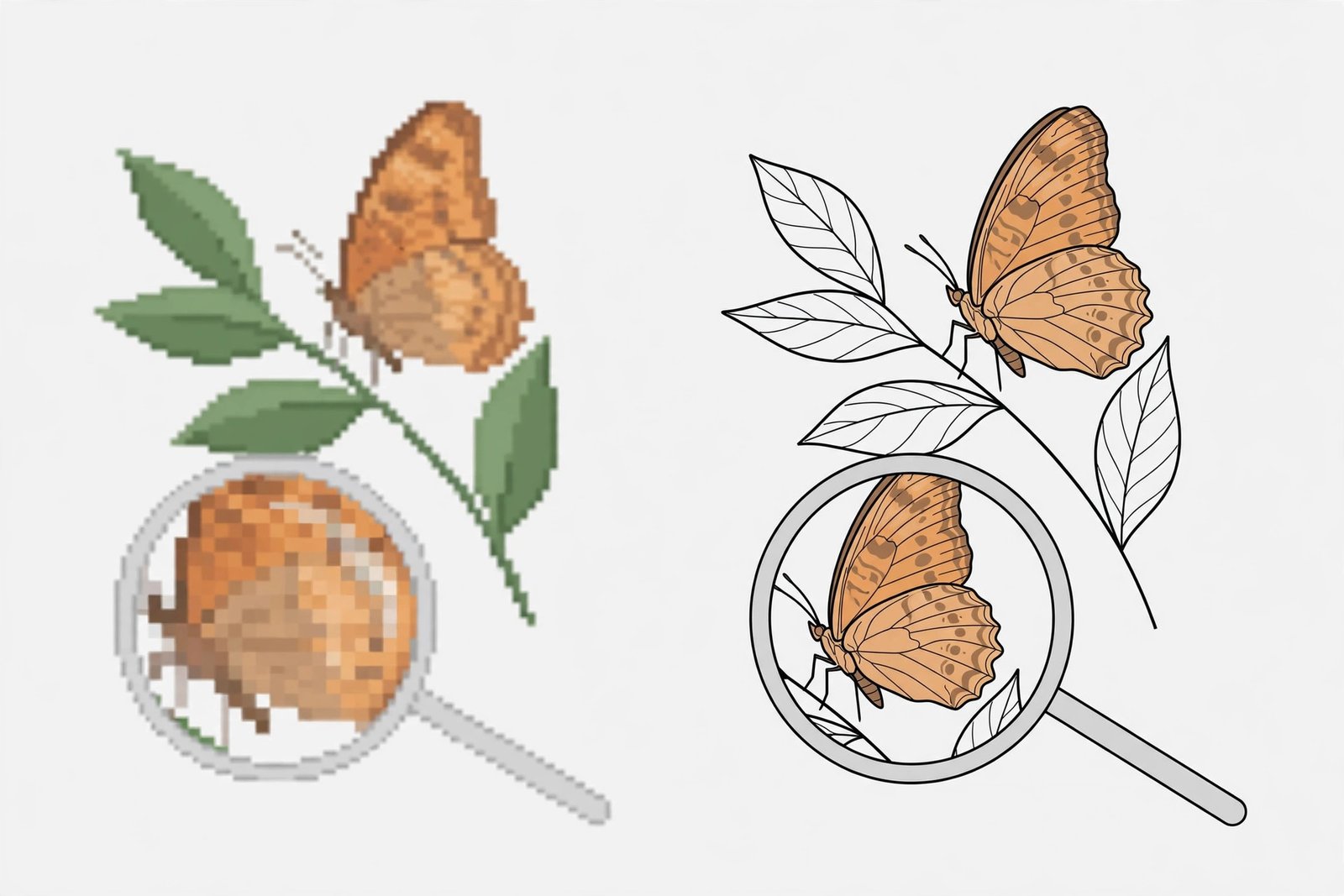
JPG vs PNG: Side-by-Side Comparison
| Feature | JPG | PNG |
|---|---|---|
| Compression | Lossy: some detail discarded | Lossless: every pixel preserved |
| Transparency | No | Yes, including partial transparency |
| File size for photos | Generally smaller | Generally larger |
| Text and sharp edges | Can look fuzzy | Stays sharp and readable |
| Repeated saving | Quality degrades each time | No further quality loss |
| Best uses | Photographs and photo-heavy pages | Logos, icons, screenshots, diagrams, text graphics |
Why Does Saving a JPG Again and Again Damage It?
Every time you save a JPG, lossy compression runs again. Repeated saves, especially with cropping or colour changes in between, gradually soften edges and dirty up text. Sending, uploading or copying the same file does not damage it; damage happens only when you open it and save it again as JPG. So never treat a JPG as your working file. Keep the original or a PNG master, and export a fresh JPG only for final delivery. If you must edit a JPG you received, convert it to PNG first: it will not look better, but it will stop the quality getting worse while you work.
How Does Transparency Actually Work?
A PNG stores, for each pixel, how see-through it should be. Fully transparent pixels let the background show through, and partly transparent ones blend with it, giving smooth soft shadows. In an editor, transparent areas appear as a grey-and-white checkerboard, but that is only the editor showing empty space. JPG has no such channel: every pixel is solid, so a JPG logo always carries a background. Hence both traps: PNG to JPG fills transparency with a solid colour, usually white, while JPG to PNG creates no transparency. Removing a background and changing format are separate jobs.
How Do You Choose? Use This Decision Order
Answer in order and stop at the first yes. Transparency and content type settle most cases before file size matters.
- Does it need a transparent background? If yes, use PNG.
- Is it a logo, icon, diagram, chart or graphic with text? If yes, use PNG.
- Is it a screenshot? If yes, use PNG, because screenshots are full of text and sharp interface edges.
- Is it a photograph with no text and no transparency need? If yes, use JPG.
- Is it a mix, such as a photo with a text overlay? Export both and keep the one where the text stays readable at full size. Small text usually favours PNG.
- Will you edit it again? If yes, keep a PNG master regardless of the final export format.
A holiday photo for email is a clear JPG case; a website logo is a clear PNG case, because a fuzzy logo undermines the whole page.
How Do You Convert Between JPG and PNG?
- Start from the best source. A conversion can never beat its source, so use the original, not an already-compressed copy.
- Decide the direction. JPG to PNG preserves quality for editing; PNG to JPG shrinks the file but discards detail and transparency permanently.
- Use “Export” or “Save As” under a new name, so the original stays untouched.
- For PNG to JPG, choose the background fill first and check it on the background where the image will actually be used.
- For JPG to PNG, do all edits in PNG and export a final JPG only at the end, if needed, at a high-quality preset.
- For many files, batch-convert in an editor or with a script; Python is a common choice for repetitive tasks like batch conversion.
Practical Checklist: Photos, Logos, Screenshots and Web Use
Photos: Use JPG for camera shots, portraits and product photos. Keep the original or a PNG master; do not re-save the same JPG after every edit.
Logos: Use PNG with transparency so the logo works on light and dark backgrounds. Try PNG-8 for simple marks, PNG-24 if colours suffer. Deliver a logo only as JPG if the destination specifically requires it.
Screenshots and diagrams: Use PNG so text stays readable, and check small text at full size. Cropping irrelevant areas often saves more size than converting to JPG.
Web pages: Use JPG for photographic banners and PNG for logos and icons. A PNG photograph can slow a page on mobile. Browsers also store images locally to avoid re-downloading them, as explained in our guide to what cache is. Resize images to display size; if an image looks stretched, the page styling may be at fault, so it helps to know what CSS is.
Email and social media: Use JPG for photos, because smaller attachments send faster. Use PNG for graphics and logos that must stay sharp. Many platforms re-compress uploads anyway, so start from a high-quality original.
Printing: Format alone does not decide print quality; resolution matters just as much. A high-quality JPG from the original is usually fine for a photo, while a logo should stay as a PNG master. Follow the printer’s instructions when given.
What About WebP, AVIF, HEIC and SVG?
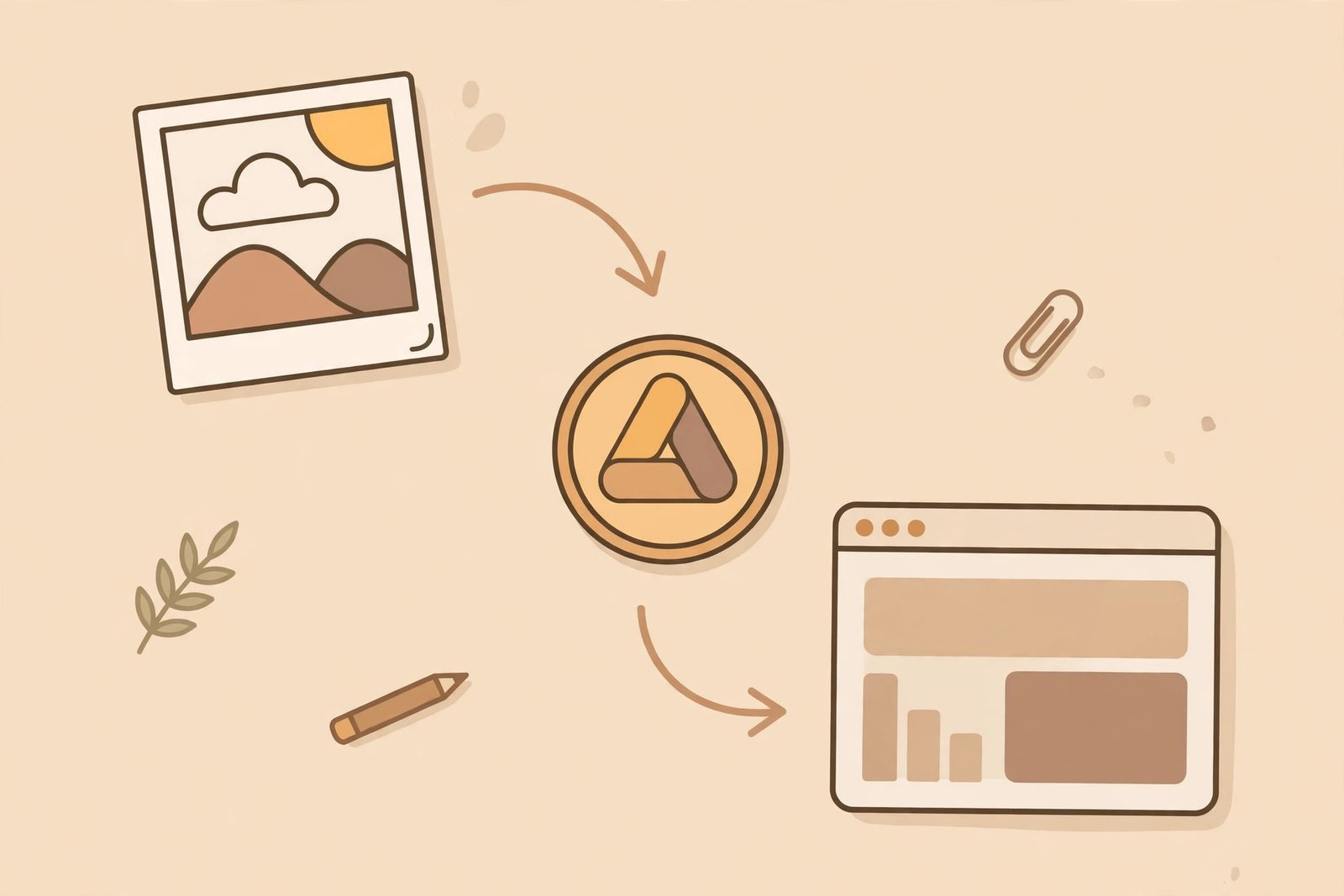
WebP and AVIF are newer web formats that can offer smaller files than JPG with transparency support, worth exploring for a website you control. HEIC is used by many phones to store photos efficiently but is less universally supported, so convert HEIC photos to JPG before sharing widely. SVG is a vector format, not a pixel grid, so a simple SVG logo can scale to any size without blurring. For everyday sharing, though, when a platform asks for JPG or PNG, give it JPG or PNG.
Common Mistakes to Avoid
- Saving logos or text graphics as JPG, leaving fuzz around letters.
- Using PNG for every photo, paying a large file size for no visible gain.
- Converting JPG to PNG to “fix” quality. The damage is already baked in.
- Converting PNG to JPG and expecting transparency to survive.
- Blaming format for a blurry upload: an image uploaded smaller than its display size is stretched and looks soft in any format.
- Editing your only copy. Keep a master.
Summary
JPG wins for photographs because lossy compression keeps them small with little visible loss. PNG wins for logos, screenshots and anything with text or transparency because lossless compression keeps every pixel sharp. Keep a high-quality master and export the format that fits the job: photo, no transparency, final copy — JPG; graphic, text or transparency, or still being edited — PNG.
Related Reading
Frequently Asked Questions
Does converting a JPG to PNG improve its quality?
No. It preserves the JPG exactly as it is, including artefacts, and usually makes the file larger. Further edits in PNG will not add more lossy damage, but it cannot restore discarded detail or create transparency.
What happens to transparency when I convert a PNG to JPG?
Transparency is lost, because JPG cannot store see-through pixels. Transparent areas are filled with a solid colour, usually white, so choose a matching fill before exporting, or keep the PNG.
Why are PNG files larger than JPG files?
PNG uses lossless compression, keeping every pixel exactly. JPG discards detail that is hard to notice, which works especially well for photographs. For simple flat-colour graphics the gap is smaller, and PNG-8 can sometimes be more efficient.
Should I use JPG or PNG for printing?
For a photo print, a high-quality JPG from the original is usually fine. For a logo or graphic, keep the PNG master, because sharp edges matter more than a smaller file. Resolution matters in both cases, so follow the printer’s instructions.
Why does my image look blurry after I upload it?
Often the cause is not JPG vs PNG. If you upload an image smaller than its display size, it is stretched and looks soft, and platform re-compression makes an already-compressed JPG worse. Export at or above display size, from your original or PNG master, at high quality.