Malware is malicious software made to harm a device, steal information, disrupt normal use, or give an attacker access without the owner’s knowledge or consent. The word combines “malicious” and “software.” It is an umbrella term, not a single threat: viruses, worms, trojans, ransomware, spyware, and adware are all types of malware. It can slow a device, change its settings, show unwanted adverts, lock files, or quietly record activity. It most often arrives through phishing messages, unsafe downloads, compromised websites, fake updates, and infected USB drives.
Table of Contents
TL;DR / Key Takeaways
- Malware works against you. A virus is only one kind of it.
- Some malware is loud, like ransomware. Some is silent, so no symptoms does not prove a device is clean.
- If infected: disconnect, scan, then change passwords from a clean device — in that order.
- Prevention is layered: updates, trusted downloads, caution with links, and separate backups.
How Does Malware Get Onto Your Device?
Most infections start with a small, ordinary-looking action. A phishing message may pose as a delivery notice or security alert, and urge you to click a link or open an attachment quickly. The link may install malware, or lead to a fake login page that steals your password. Urgency is the clue — legitimate services rarely demand an instant click.
Unsafe downloads are the second common route. A “free” version of paid software, a game mod from an unofficial site, or an extension from an unknown publisher can carry a trojan: software that looks useful but installs something extra. If an installer asks you to switch off security warnings, treat that as a warning.
Outdated software is quieter: an unpatched weakness can let a compromised site trigger a download in the background, sometimes with no click. Infected USB drives and devices on the same network can spread infection further.
Public Wi-Fi adds risk for sensitive logins. Encryption helps there, which is why it is worth understanding what a VPN is — and its limits, in VPN vs proxy. A VPN encrypts your connection; it does not remove malware.
What Are the Main Types of Malware?
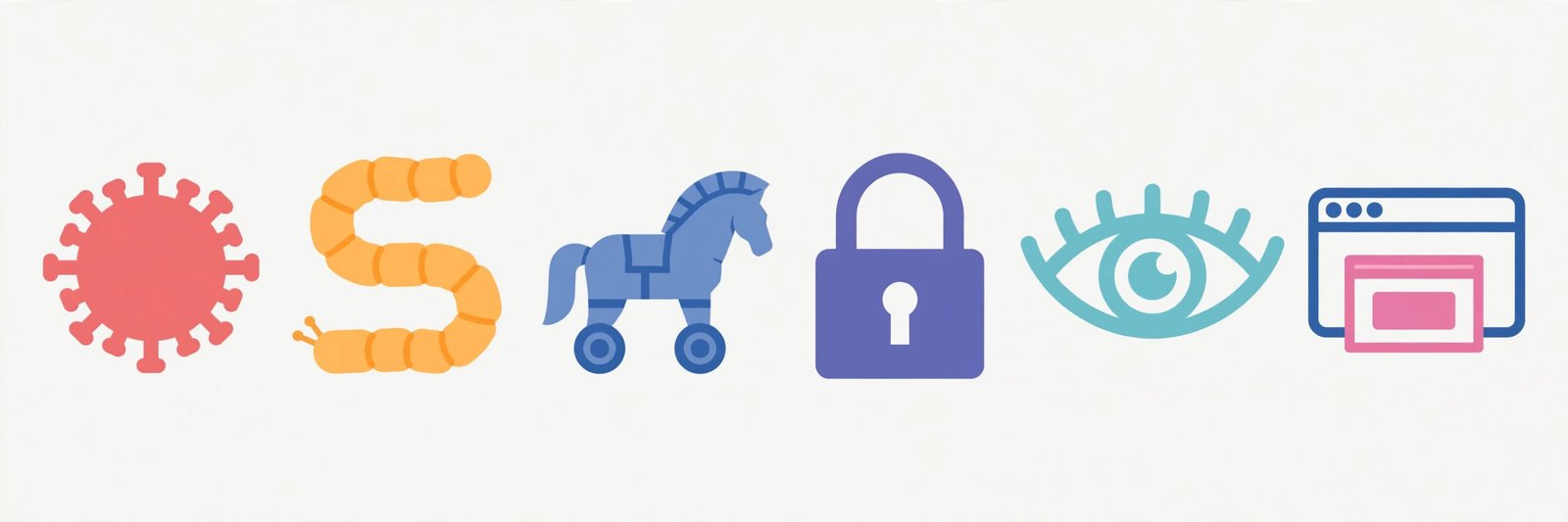
| Type | What it does | How it spreads |
|---|---|---|
| Virus | Attaches to files and corrupts them | Opening or sharing an infected file |
| Worm | Copies itself across networks alone | Exploiting device or network weaknesses |
| Trojan | Looks useful, then opens a back door | You install it, believing it is legitimate |
| Ransomware | Locks files and demands payment | Phishing links, attachments, unsafe downloads |
| Spyware | Secretly records browsing or keystrokes | Hidden inside downloads or fake apps |
| Adware | Floods the device with unwanted adverts | Bundled with free downloads or extensions |
A virus needs you to open a host file; a worm does not. A trojan relies on deception. Ransomware denies you your own files, spyware quietly seeks information, and adware degrades performance and can lead to riskier sites.
Two hidden kinds matter too. A rootkit buries itself deep in the system to stay undetected, while fileless malware runs in memory using legitimate tools, leaving little for a basic scan to find. Both explain why one “all clear” scan is not always the end of the story.
What Are the Signs of Infection — and Can Malware Hide?
No single symptom proves infection — slowness can also come from an ageing device. Several signs together, after a suspicious click, are a stronger warning:
- Sudden slowness, freezing, or crashes, or fast battery drain
- Pop-ups even when the browser is closed
- A changed homepage or setting, or unfamiliar apps
- Messages or posts sent from your accounts that you did not write
- Files that will not open or have unfamiliar extensions
- Sharply higher data use, or security software that will not stay on
On phones, watch for apps asking for permissions they do not need — for example, a torch app asking for contacts. And remember the gap many guides skip: some malware shows no symptoms at all. Spyware and rootkits are designed to stay quiet, so if you clicked a phishing link, scan and secure your accounts even if the device feels fine.
Is it malware, or just a slow device? One slow app after an update is usually an app problem: restart it and check storage. Several symptoms together after a suspicious click point to infection. No symptoms, but a password entered on a fake page, still means theft may have happened — change it from a clean device. Files locked with a ransom message mean ransomware: disconnect at once.
What Should You Do If Your Device Is Infected?
Work in this order — changing passwords on an infected device can hand them to spyware.
- Disconnect from the internet. Switch off Wi-Fi and unplug any network cable, to stop data being sent out and infection spreading. Check other devices on the same network too.
- Do not log in to sensitive accounts on that device until it is clean.
- Run a full scan with trusted security software — your system’s built-in tool or a reputable program you already trust. Quarantine or remove what it finds, then restart and scan again.
- Remove suspicious apps, extensions, and recent downloads from untrusted sources.
- Change important passwords from a clean device. Start with email, because email is often used to reset other accounts, then banking and social media. Use a different, strong password for each, and switch on two-factor authentication where available.
- Check accounts and backups for unfamiliar transactions or changed settings, and restore from a clean pre-infection backup if you have one.
Clean, or reinstall? A successful scan with no returning symptoms is usually enough for adware and many common infections. Reinstall — a factory reset or clean install from official sources — if malware keeps returning, security tools will not run, files stay locked, or banking or identity details may have been exposed. Reinstalling erases data, so save clean files first where possible. If money or identity details are involved, get help from a reputable technician or your bank.
What not to do: do not download a “free cleaner” from a pop-up on the infected device — fake security software is itself common malware. Do not pay a ransom on impulse, and do not plug an infected USB drive into another computer to “check” it.
How Is Malware Different From a Scam?
Malware is software that infects a device. A scam is a trick that persuades a person to hand over money, information, or access. Many attacks use both: a scam message persuades you to click, and the click installs malware — or malware steals a password later used in a scam. So cover both sides: clean the device and secure the accounts. Removing malware does not undo a stolen password, and changing a password does not remove malware still watching the device. The same tricks appear in both — urgency, false authority, and too-good-to-be-true offers — as MoviBox’s guide on how to spot and avoid crypto scams in 2026 explains.
How Can You Protect Yourself From Malware?
No single habit makes you immune. Together, these close most of the easy routes attackers rely on.
Keep everything updated. Install system, browser, and app updates promptly, and switch on automatic updates where you can. Download only from trusted sources — official app stores and developers’ own websites.
Pause before you click. Do not open attachments or click links in unexpected messages, even if they look familiar. If a message claims urgency, verify it separately by visiting the service’s official site directly, not via the link.
Keep security tools on. Leave built-in security and the firewall switched on, and use reputable security software with real-time protection if your setup calls for it. It catches threats as they arrive.
Protect accounts and networks. Use strong, unique passwords and two-factor authentication on email and banking. Knowing what your IP address is helps you understand what a network can reveal about your device.
Back up — and keep the backup separate. Copy important files to a location disconnected after backing up, or to a trusted cloud service, and check that you can restore from it. A backup still connected to an infected device can itself be locked by ransomware.
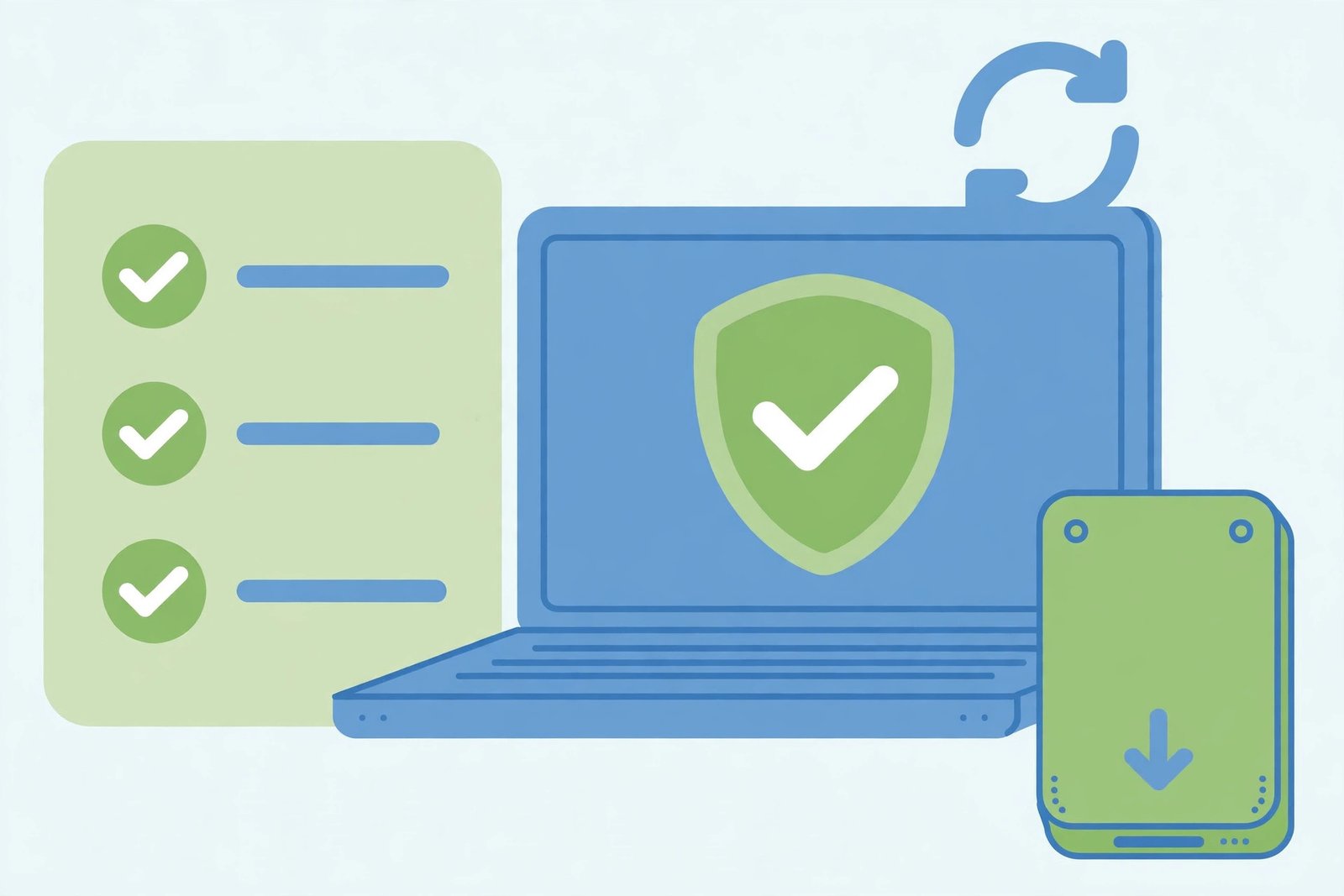
Practical prevention checklist:
- Automatic updates on
- Security software and firewall active
- Downloads only from official sources
- Links and attachments checked before clicking
- Unique passwords plus two-factor authentication
- Backups stored separately, restore tested
- Unused apps removed; permissions reviewed
- Other devices on the network checked
Summary
Malware is software designed to harm your device, steal information, or take control without your permission. It arrives most often through phishing, unsafe downloads, and outdated software, and ranges from loud ransomware to silent spyware. The best defence is layered: update promptly, download carefully, question unexpected links, and keep separate, tested backups. If infection happens, disconnect, scan, secure accounts from a clean device, and reinstall — or get help — if infection persists.
Related Reading
Frequently Asked Questions
Is a virus the same thing as malware?
No. Malware is the broad category, and a virus is one type within it. Calling every infection a “virus” hides the real behaviour — self-spreading, deception, or file-locking.
Can malware hide even if a scan finds nothing?
Yes. Spyware, rootkits, and fileless malware are built to stay quiet, and no scan catches everything. A clear scan is reassuring, not proof. If you clicked a phishing link or installed a suspicious app, still change affected passwords from a clean device.
Does a VPN stop malware?
No, not directly. A VPN encrypts your connection, which helps on untrusted networks, but it does not scan downloads or block malicious software. See what a VPN is and VPN vs proxy for what each tool actually does.
Should I pay if ransomware locks my files?
Do not pay on impulse. Payment does not guarantee your files will be restored. Disconnect the device, seek trusted help, and restore from a clean pre-infection backup if you have one.
Is free antivirus software enough?
Free tools can provide useful baseline protection, especially with real-time scanning, but they are only one layer. No tool — free or paid — catches everything, which is why updates, cautious clicking, strong passwords, and separate backups matter just as much.