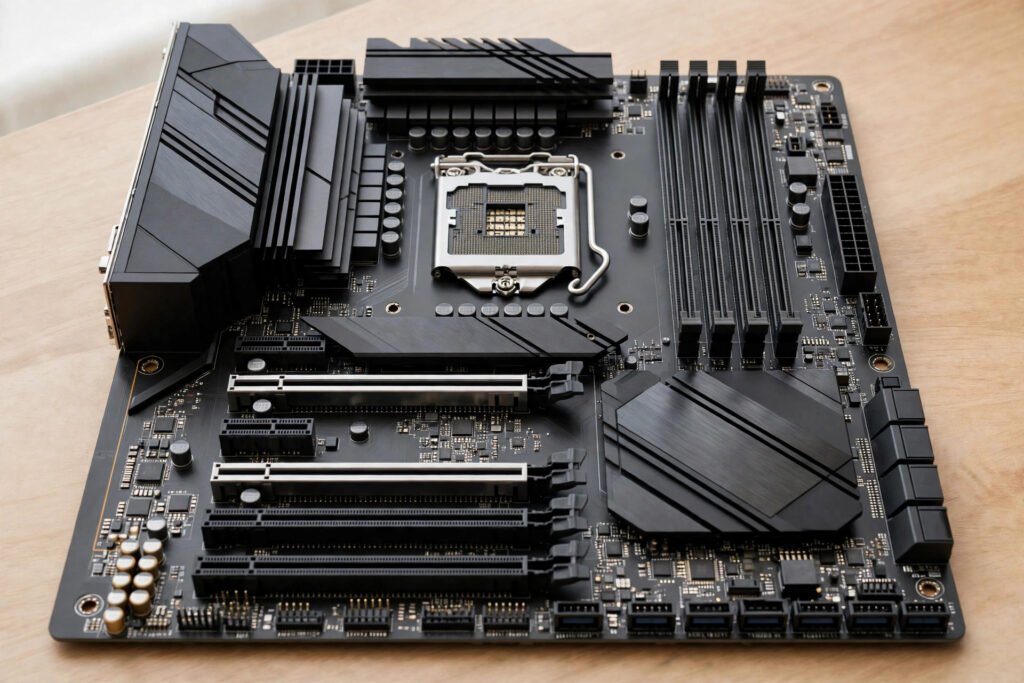
It is the least glamorous computer part, and the one everything else depends on. Nobody buys a PC for its motherboard, yet remove it and you have no computer — just expensive parts with nowhere to connect.
A motherboard, also called a mainboard or system board, is the large circuit board connecting every part of a computer. Processor, memory, storage, graphics card, and ports all plug into it, and it carries power and data between them. If other parts are the organs, the motherboard is nervous system and skeleton combined, holding everything in place as the connectivity hub.
Table of Contents
A Tour of the Board: What Lives Where
Open a desktop PC and the motherboard is the flat board covering most of the case interior. Its layout looks crowded, but each area has a clear job, and learning the main ones makes the board far less intimidating.
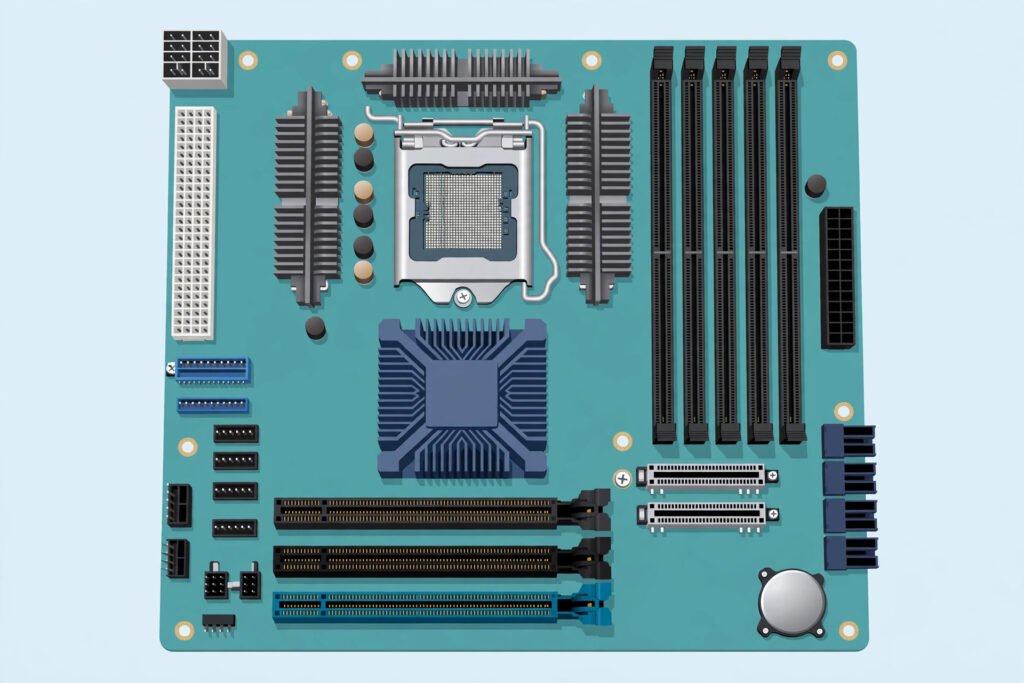
The CPU socket sits near the centre, usually under a large cooler. This is where the processor mounts, and it only accepts processors designed for that exact socket type. An Intel processor will not fit an AMD socket, and even within one brand, different generations often use different sockets. This alone causes more failed upgrade plans than any other factor.
RAM slots run alongside the CPU socket. These long slots hold memory modules, and type matters: a board built for DDR5 memory will not accept older DDR4 modules, or vice versa. Most desktop boards have two or four slots, and filling them in the correct pairs matters for performance, so read the manual rather than guessing.
The chipset is the board’s traffic controller: chips, usually under a small heatsink, managing communication between the processor and slower parts such as storage drives, USB ports, and onboard devices. It also defines many of the board’s limits, such as how many fast drives or USB ports it can support.
Expansion slots, most visibly the long PCI Express (PCIe) slots, accept add-in cards. The top, longest slot usually holds the graphics card, while shorter slots can take network, sound, or storage cards. Slot layout decides what you can add later, which is why upgradability starts here.
Storage connectors include M.2 slots for compact NVMe solid-state drives and SATA connectors for traditional drives. M.2 slots are small and easy to miss under heatsinks, but they provide most modern PCs’ fastest storage.
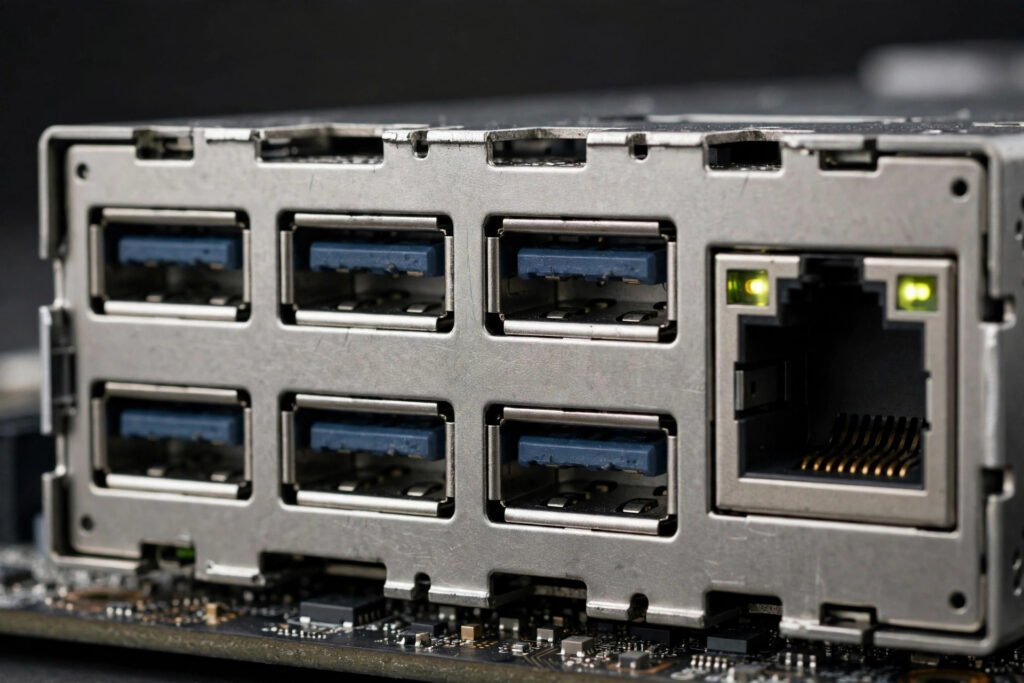
The rear input-output panel is the strip of ports at the back of the PC: USB ports, audio jacks, video outputs, and Ethernet for wired networking. Modern boards commonly include USB-C alongside older USB types. Onboard audio and the network controller are built in, so most users never need separate sound or network cards.
Power connectors and power delivery complete the picture. The board takes power from the power supply and distributes it, with voltage regulators near the CPU socket stepping it down to the precise levels the processor needs. Better power delivery matters most for high-end processors under sustained load; for everyday machines, a solid mid-range board is plenty.
The Firmware: BIOS and UEFI
A motherboard also carries firmware: low-level software stored on a chip on the board. Older boards used BIOS; modern boards use its successor, UEFI. When you press the power button, firmware wakes first, checks that processor, memory, and essential hardware are present, then hands control to the operating system.
This is also where boot order lives: firmware decides whether to start from your main drive, a USB stick, or another device, which is why changing the startup drive means entering firmware settings. Our guide to BIOS boot order explains that process. A related feature, Secure Boot, checks that startup software is trusted, adding protection against certain tampering.
You will rarely need to update firmware, and never casually on an unreliable power supply, because an interrupted update can leave a board unusable. For most users, firmware is something to know exists, not to tinker with weekly.
Motherboard Sizes Explained: ATX, Micro-ATX, and Mini-ITX
Motherboards come in standard sizes, called form factors; size decides how much fits and which cases accept the board.
| Form Factor | Size (approx.) | Typical Slots and Features | Best For |
|---|---|---|---|
| ATX | The full-size standard | Four RAM slots, several PCIe slots, many ports and storage connectors | Most desktop builds, maximum expansion |
| Micro-ATX | Noticeably smaller | Usually four RAM slots, fewer PCIe slots | Budget and mid-range builds, smaller cases |
| Mini-ITX | Very compact | Two RAM slots, one main PCIe slot | Small, tidy PCs where space matters most |
Bigger is not automatically better. A compact board in a small case can be a delight on a desk, while a full-size board gives room for extra cards and drives. The right choice depends on how many parts you plan to install, not which board looks most impressive. Also check case compatibility: a case must list support for your board’s form factor, and a very large graphics card or cooler can crowd a small board even when the form factor technically fits.
Motherboard vs CPU: Which One Makes a PC Fast?
This is one of the most misunderstood questions in PC building. For everyday speed, processor, memory, and storage matter far more than the motherboard. Two decent boards with the same processor and memory will feel almost identical in browsing, office work, and most games.
Where the motherboard does matter is what it allows: which processors fit, how much and what type of memory you can install, how many fast drives you can add, which cards fit, and what ports are on the back. It also affects stability through power delivery and cooling, especially with demanding processors. Think of it this way: the CPU is the engine, the motherboard the chassis, wiring, and dashboard. A great chassis will not make a weak engine fast, but the wrong chassis can stop a strong engine being installed at all.
The same logic applies to small, fast memory inside the processor. Our explainer on what cache is shows why proximity and speed matter: a motherboard’s job, at its core, is to keep fast and slow parts connected without becoming the bottleneck.
A Worked Example: Upgrade Motherboard Without a Costly Mistake
Suppose your PC is a few years old and you want a faster processor. Buying the newest CPU you can afford is tempting; checking your motherboard first is correct.
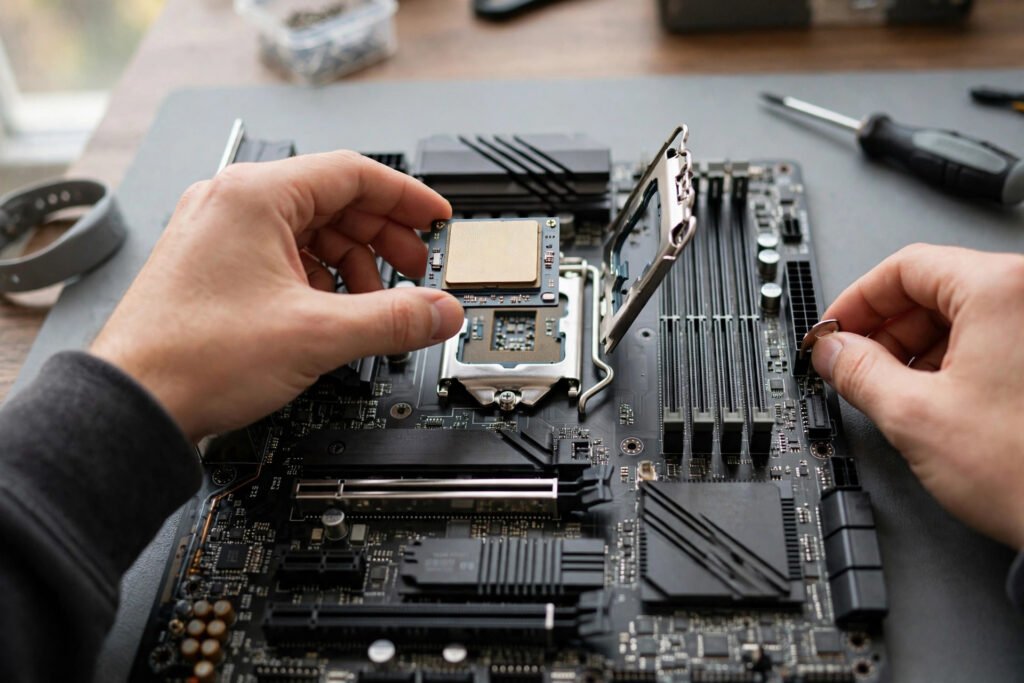
Step one: identify your board’s model and CPU socket, from manual, box, or system information tool. Step two: check the manufacturer’s CPU support list, which lists precisely which processors work and sometimes notes a firmware update required first. Step three: check memory type — older board memory plus a new processor needing newer memory means new RAM too. Step four: check power delivery and cooling: a far more powerful processor in a modest board may run hot or throttle.
In many real upgrades, either the current board supports a worthwhile processor upgrade and you save money, or it does not, and you budget for board, processor, and possibly memory together. Discovering that before ordering is the difference between a smooth upgrade and parts that do not fit. ASUS, MSI, and Gigabyte publish these lists for Intel and AMD boards, and checking takes minutes.
Common Mistakes People Make With Motherboards
Buying the CPU first and the board second. Always check motherboard compatibility and match them as a pair: socket, chipset, and memory type must agree, or the build stops before it starts.
Choosing purely on price, or purely on looks. The cheapest board may lack the ports, slots, or power delivery you need in a year, while the flashiest may spend your budget on features and lighting you will never use. Aim for the middle: solid power delivery, the ports you need, and room for one sensible upgrade.
Forgetting the case. A board that does not fit, or a case with poor airflow around power delivery, creates problems no software fix can solve. Check form factor support and leave room for airflow.
Ignoring the rear ports. Count what you actually plug in: monitors, keyboard, mouse, audio, external drives, wired network. A board with too few USB ports, or without the video output you need for integrated graphics, becomes a daily annoyance.
Updating firmware without a reason. Firmware updates can add processor support and fix issues, but an unnecessary update carries small risk for no benefit. Update when the manufacturer’s notes say it fixes your problem or enables new hardware, not just because a newer version exists.
Practical Checklist: What to Do Next
- How to choose a motherboard: list the processor you want, find boards with matching socket and chipset, and confirm memory type (for example DDR5) and RAM slot count.
- Count needs: PCIe slots for a graphics card and extra cards, M.2 slots for fast storage, SATA ports for older drives.
- Check motherboard ports on the rear panel: enough USB ports, the right video outputs, Ethernet, and audio.
- Match form factor to your case: ATX, Micro-ATX, or Mini-ITX, and check cooler and graphics card clearance.
- Read the manufacturer’s CPU and memory support lists; do not rely on a retailer’s “compatible” label alone.
- If upgrading, check for a needed firmware update before swapping processors, and do it while the old processor is still installed.
- Keep the manual: it shows RAM slot order, front-panel connectors, and storage locations.
Related Reading
Frequently Asked Questions
What does a motherboard do?
It connects all parts of a computer. Processor, memory, storage, graphics card, and ports attach to it, and it distributes power and carries data between them.
Does a motherboard affect performance?
Less than most people expect. For everyday tasks, a decent board with the same processor and memory performs like any other. It affects performance mainly through compatibility, memory speed, power delivery under load, and how many fast drives and cards it runs at full speed.
Can I use any CPU with any motherboard?
No. The CPU must match the board’s socket, and chipset and firmware must support that specific processor. Always check the manufacturer’s CPU support list for the exact board model before buying.
Do I need to upgrade my motherboard to upgrade my CPU?
Sometimes, but not always. If your board’s socket and firmware support a faster processor in the same family, you may only need the processor. If the new processor uses a different socket or memory type, motherboard and possibly memory must be replaced too.
How long does a motherboard last?
Physically, a good board can last many years, often longer than the processor generation it was built for. In practice, boards are usually replaced when a desired processor, memory type, or feature requires a newer socket or chipset, rather than because the board failed.
The motherboard will never be the part you brag about, and that is exactly the point. Chosen well, it disappears: everything fits, is recognised, has a port, and the machine simply works. Chosen carelessly, it becomes why a good processor cannot be installed or a setup is one USB port short. Spend attention on compatibility first, features second, and looks last, and the most boring part of your computer will quietly do its most important job.