
You press the power button and instead of the familiar logo you see: “Secure Boot Violation — Invalid signature detected.” Your PC has refused to start something it does not trust. That refusal is the whole point of Secure Boot.
Secure Boot is a UEFI firmware security feature that checks the digital signature of each piece of boot software before it is allowed to run. In plain terms, it is a gatekeeper that stands between switching your computer on and loading your operating system, and it only waves through boot software that has been signed by a trusted authority. If a boot loader, driver, or other early-start program fails that firmware verification, Secure Boot blocks it, which is tamper protection in practice: it helps stop certain kinds of malware from taking hold before your antivirus software has started.
Table of Contents
How Secure Boot Works, Step by Step
Follow what happens in the few seconds after you press power. This is the trusted boot chain, and each link depends on the one before it.
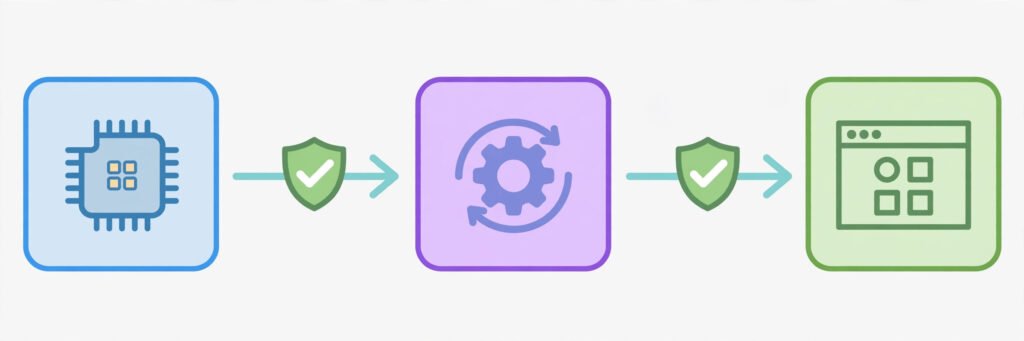
- Your PC powers on and the UEFI firmware wakes up. UEFI firmware is the modern replacement for the old BIOS system. It is the first software to run, and it lives on a chip on your motherboard, not on your hard drive.
- UEFI checks its own trusted keys. Secure Boot relies on a small set of cryptographic keys stored in firmware, forming a hardware root of trust. Think of these as a list of approved signatures for authorised software, maintained through the UEFI Forum’s standards and, on most consumer PCs, including keys from Microsoft.
- The bootloader is checked. Before the operating system loader is allowed to run, UEFI verifies its digital signature against those trusted keys. A signed bootloader from a trusted source passes; an unsigned or altered one does not.
- The bootloader checks the next stage. On a typical Windows PC, the bootloader then verifies the operating system kernel and early drivers in the same way. If anything in that chain has been altered, the chain breaks and booting stops.
- Only then does your operating system take over. Once every checked stage has passed, Windows, Linux, or another system loads normally, and your login screen appears.
That sequence is why Secure Boot is boot security rather than ordinary malware protection. Antivirus software runs inside the operating system, so it can only act after the system has started. A threat that infects the boot process itself — sometimes called a bootkit — can load before the operating system and hide from tools running inside it. Secure Boot closes that gap by refusing untrusted boot software in the first place. It does not make a PC invulnerable, and it does not replace antivirus software, but it removes one of the earliest and hardest-to-spot places for malicious code to hide.
A common confusion is worth clearing up: Secure Boot is not a BIOS password, and it is not a TPM. A BIOS or UEFI password controls who can change firmware settings, while a TPM, or Trusted Platform Module, is a separate chip that stores keys and supports drive encryption. Secure Boot is specifically about verifying boot software. Modern systems commonly ship with all three, but turning one on does not turn on the others. The guide to what is BIOS boot order explains what your firmware tries first when you switch on.
Secure Boot vs TPM vs a BIOS Password
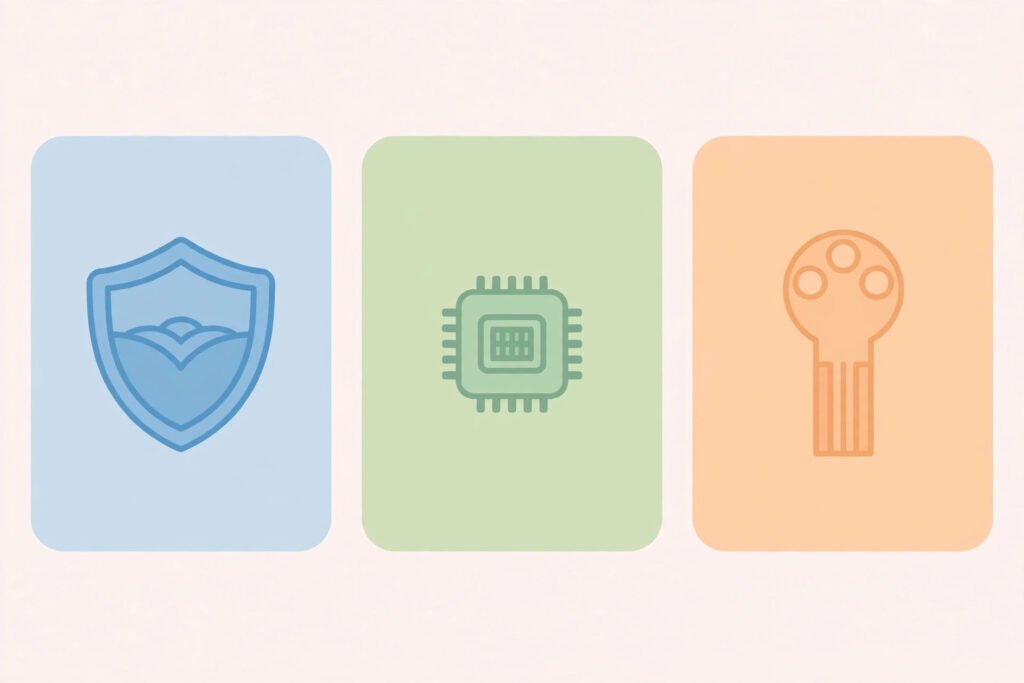
| Feature | What it actually does | What it does not do |
|---|---|---|
| Secure Boot | Verifies digital signatures on boot software before it runs | Encrypt your files, or check software once the system is running |
| TPM | Stores cryptographic keys securely in hardware and supports features such as drive encryption | Decide which boot software is trusted |
| BIOS or UEFI password | Restricts who can open firmware settings and change them | Verify that boot software is genuine |
The practical point is simple: Secure Boot answers the question “should this boot software be allowed to run at all?”, while a TPM answers “where can secret keys be kept safely?” and a password answers “who is allowed to change these settings?” A well-set-up modern PC usually has all three enabled.
A Worked Example: Enabling Secure Boot Before a Windows 11 Upgrade
Suppose a Windows Secure Boot check, run before a Windows 11 upgrade, reports that Secure Boot is off. You do not need to reinstall anything. Here is what the fix usually looks like.
First, you learn how to check Secure Boot from inside Windows rather than guessing. You open System Information, look for the Secure Boot State entry, and see whether it says On or Off. If it says Off, the next step is to restart into UEFI settings — usually by holding Shift while choosing Restart, then going to Troubleshoot, Advanced options, and UEFI Firmware Settings. The exact menu names vary by motherboard maker, which is why this step trips people up: on an Intel-based board the option may sit under a Boot tab, on an AMD-based board under Security, and on some laptops under a differently named section altogether.
Inside UEFI settings, to enable Secure Boot you find the option and switch it to Enabled, then save and exit. If it is greyed out, the usual cause is an older compatibility mode, sometimes labelled CSM or Legacy, which must be switched off first. After restarting, confirm in System Information that Secure Boot State now reads On.
The example also shows where things can go wrong. A second operating system, such as Linux alongside Windows, needs a bootloader signed with a key your firmware trusts, or Secure Boot will block it. Many mainstream distributions ship a signed bootloader, often loading GRUB through a shim signed by Microsoft, so dual boot works with Secure Boot on. But a less common distribution, a custom kernel, or a home-built bootloader may not be signed, leaving a genuine choice: use a signed version, add your own key, or switch Secure Boot off and accept reduced boot protection. That trade-off is the main reason “should Secure Boot be on or off” has no single answer for every user.
Common Mistakes People Make With Secure Boot
Turning it off permanently for a one-time job. Disabling Secure Boot to boot a recovery USB once, then forgetting to turn it back on, quietly leaves boot protection off. Treat it like leaving your front door unlocked while carrying furniture in: fine for the job, but lock it again afterwards.
Assuming Secure Boot means the PC is fully protected. It checks boot software only, not phishing emails, malicious downloads, or a virus that runs after you log in. It sits alongside, not instead of, the protections in the guide to what is malware and what is a computer virus.
Confusing Secure Boot with drive encryption. It does not encrypt your hard drive or lock you out of files. Encryption is separate — often BitLocker on Windows, which may use the TPM but is not the same switch.
Changing settings without noting the originals. UEFI menus differ between makers, and an unrelated setting is easy to change by accident. Photograph each screen you change, so you can restore it if needed.
Blaming Secure Boot for every boot failure. Most boot failures — a missing drive, a corrupted install, a loose cable — have nothing to do with it. Check the exact message first.
Disabling it because a forum post said so. Older guides often told every user to switch it off first. That made more sense when signed Linux bootloaders were rare; today, disabling it should be a deliberate, temporary decision, not a default.
Should Secure Boot Be On or Off?
For most people, the answer is on. Windows 11 in fact requires it, because Microsoft wants that boot chain verified on every supported PC. Keeping it on costs nothing in everyday use: your PC does not run slower, your files are unaffected, and you notice it only when it blocks something untrusted — exactly when you want it to work. The exceptions are specific: a temporary need to boot an unsigned recovery tool or older system, or software whose boot components cannot be signed. In those cases, make it a conscious choice, accept that you are giving up boot verification, and keep updates and antivirus in good shape. Is Secure Boot safe to leave on? Yes — it does not collect data or interfere with applications once the system has started.
Checklist: Before You Change Any Secure Boot Setting
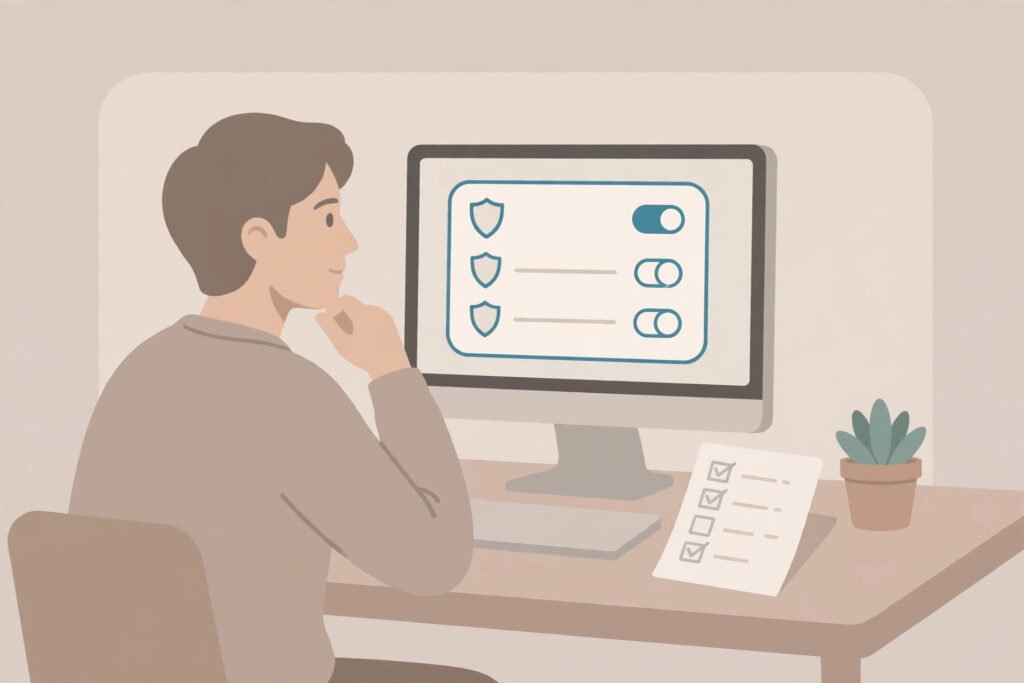
- Check the current state first, from System Information, rather than assuming it is off.
- Note down, or photograph, your existing UEFI settings before changing anything.
- Confirm whether you dual-boot Linux or use any custom bootloader that might need a signed version.
- Switch off legacy or CSM mode first if the Secure Boot option is greyed out.
- After enabling it, restart and confirm Windows or your operating system loads normally, then re-check the state.
- If you disabled it for a one-off task, set a reminder to turn it back on the same day.
- If a boot error appears, read the exact message: only a signature or violation message points at Secure Boot itself.
The guide to what is a motherboard explains where firmware lives, and the explainer on what is a kernel covers the core of the operating system Secure Boot ultimately hands control to.
Related Reading
Frequently Asked Questions
How do I check if Secure Boot is enabled on my PC?
On Windows, open System Information — search for it from the Start menu — and look for Secure Boot State, which reads On or Off. You can also check in UEFI settings, but System Information is quicker and does not risk changing anything by accident.
What is a Secure Boot error, and what should I do about it?
A Secure Boot error, often worded as a violation or invalid signature, means firmware verification failed for boot software. First, remove any recently added bootable USB drive and try again. If it appeared after installing a second operating system or custom bootloader, that software is probably unsigned; use a signed version, or disable Secure Boot only if you understand the trade-off.
Can I install Linux with Secure Boot turned on?
In most cases, yes. Mainstream distributions ship signed bootloaders, often through a signed shim, so they boot normally with Secure Boot enabled. If your chosen distribution or custom kernel is unsigned, you will either need to sign it yourself, enrol your own key in firmware, or switch Secure Boot off.
Does Secure Boot slow down my computer?
No, not in any way you would notice. The signature checks happen once, during the few seconds of startup, before the operating system loads. They do not affect how fast your applications run, how quickly files open, or how well games perform.
Should I turn Secure Boot off to fix a problem?
Only as a deliberate, temporary test, and only if the message points to a signature problem. Turn it off, test, and turn it back on afterwards. If the problem persists, the cause lies elsewhere, and leaving it off only removes protection without fixing anything.