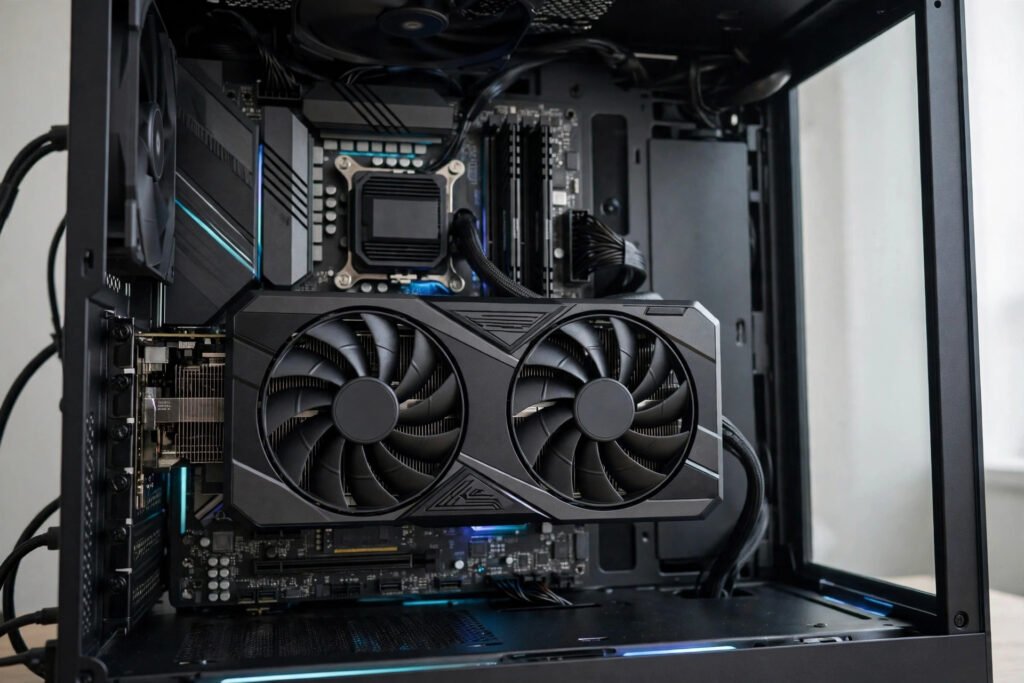
Last year, a friend bought a brand-new laptop for video editing. On paper it looked fast: recent processor, plenty of storage, bright screen. Then he opened his editing timeline, added effects, and playback turned into a slideshow. He had simply bought a machine whose graphics processor was never meant for that work. That mistake is what this guide prevents.
A GPU, short for graphics processing unit, handles pictures, video, and other highly parallel work. It draws everything you see on screen, from the desktop and web pages to games, 3D models, and video effects. In short: the CPU is the general manager, while the GPU is its specialist visual workforce, doing thousands of small calculations at once.
Table of Contents
What Does a GPU Actually Do?
Every frame on your screen is a calculation. A game scene is not a photograph: it is built, many times per second, from geometry, textures, lighting, shadows, and reflections. A video effect must be recalculated for every frame, and even a smooth web animation needs constant drawing work.
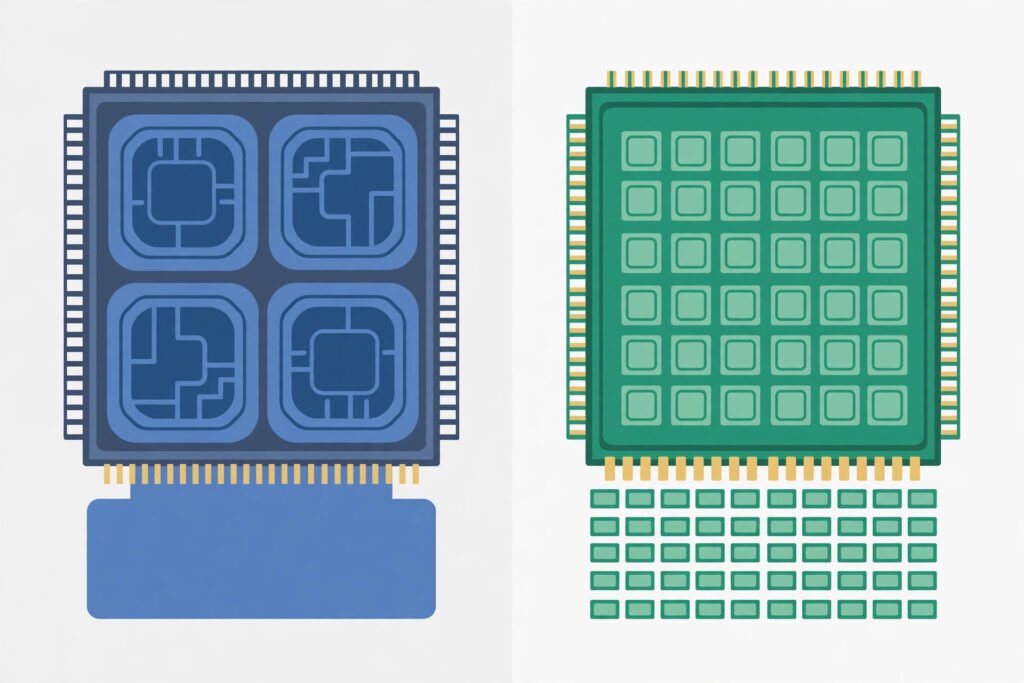
That is where parallel processing comes in. A typical CPU has a small number of powerful cores, each good at complex, sequential tasks. A GPU has a very large number of smaller cores — often called shader cores — designed to do many simpler calculations simultaneously. If a CPU is like a handful of expert chefs, a GPU is like a huge kitchen crew all chopping and plating at once. Neither is “better” in absolute terms; they are built for different work. This is the heart of the GPU vs CPU comparison, and it explains why a stronger graphics card can transform gaming performance or video work while barely changing how fast a document opens.
Modern GPUs do more than draw triangles. They also accelerate video encoding, image processing, 3D rendering, and machine learning workloads — a GPU crunching huge arrays of numbers in parallel is often behind image models. For more on that field, see our guide to what machine learning is.
How Does a GPU Work, Step by Step
Here is what happens dozens of times per second:
- The program sends a job. A game, editor, or browser tells the GPU what to draw: shapes, textures, colours, lighting, and camera position.
- The work is split up. The GPU breaks that job into thousands of tiny tasks and hands them to its many cores at once.
- Pixels are calculated. Each core works out colours, shading, and effects for its share of the image. This is why a sharp, detailed picture depends on so many calculations: every pixel on screen needs a final colour value.
- The frame is assembled. The finished frame is stored in video memory, ready to be sent to your display.
- The display shows it. Through an HDMI or DisplayPort connection, the frame reaches your monitor, and the whole cycle starts again for the next frame.
Frame rate is how many finished frames appear per second. Higher frame rates look smoother, but demand more work every second. When the GPU cannot keep up, you see stuttering or dropped frames — the classic sign of a graphics bottleneck.
GPU vs Integrated Graphics: Dedicated or Built In?
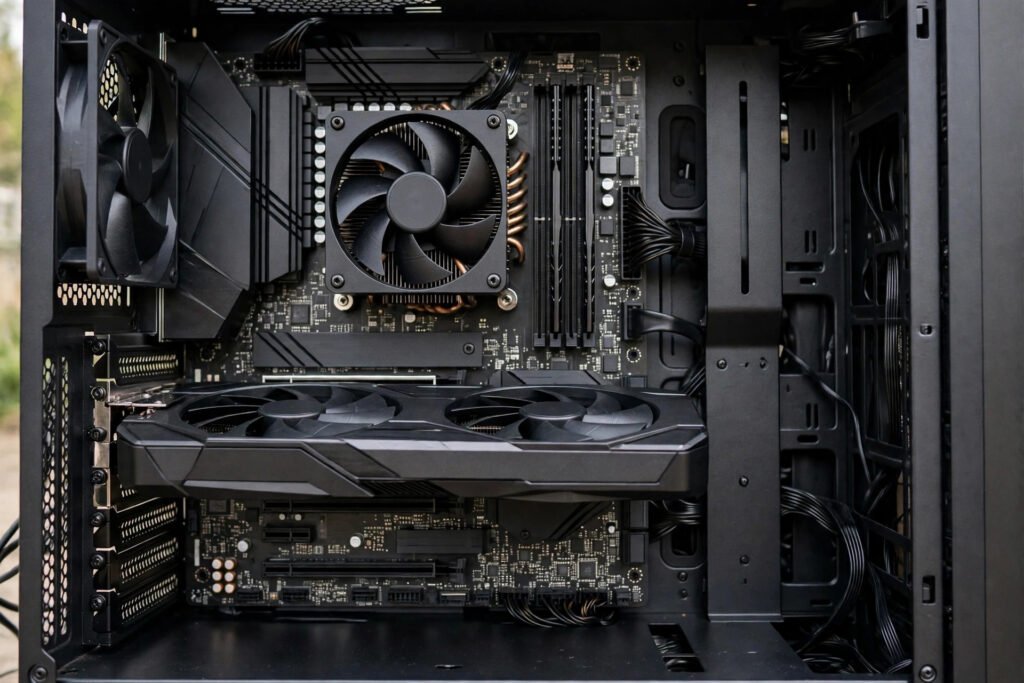
Not every computer has a separate graphics card. Many laptops and office PCs use integrated graphics, where the graphics chip lives inside the CPU and shares main memory. A dedicated graphics card is separate hardware with its own processor, video memory (VRAM), and cooling, usually plugging into a PCI Express (PCIe) slot on the motherboard.
| Integrated Graphics | Dedicated Graphics Card | |
|---|---|---|
| Best for | Browsing, office work, streaming video, light photo editing | Gaming, video editing, 3D work, demanding creative apps |
| Memory | Shares system memory with the CPU | Has its own VRAM (GDDR memory) |
| Performance | Good enough for everyday tasks | Much higher for graphics-heavy work |
| Power and heat | Low; ideal for thin, quiet laptops | Higher; needs better cooling and a capable power supply |
| Cost | Included with the processor | A separate purchase, and often a major one |
| Upgradability | Cannot be upgraded separately | Can usually be swapped in a desktop PC |
Neither option is wrong. Integrated graphics have improved enormously, and for everyday computing they are often the sensible, quiet choice. Problems come when someone expects dedicated-card performance from integrated graphics, or pays for a powerful card and only uses it for email.
A Worked Example: Choosing a GPU for Video Editing
Imagine you edit short videos for social media: 1080p footage, some colour correction, titles, and occasional transitions. Playback stutters whenever you stack two video tracks and an effect. Here is how to think through the fix, in order:
First, check whether the problem is really the GPU. If playback is smooth without effects but choppy with them, graphics acceleration is a likely culprit. If the whole computer feels slow even opening files, the processor, storage, or memory may matter more. Graphics memory plays a similar role to the fast, small memory inside a processor: our explainer on what cache is shows why having the right data close at hand speeds everything up.
Second, match the card to the resolution you actually edit. Editing 1080p footage is far less demanding than 4K footage with heavy effects, and buying a card for work you never do wastes money and electricity. A mid-range NVIDIA GeForce, AMD Radeon, or Intel Arc card suits serious 1080p and light 4K editing; heavy 4K or 3D work justifies going higher.
Third, check the rest of the system. A powerful GPU with a weak power supply, poor airflow, or a very old processor will still disappoint; it is one part of a balanced system, not a magic fix. Finally, check physical fit: the card must fit your case and PCIe slot, with the display outputs your monitor needs.
What GPU Specifications Actually Mean
Shopping pages are full of numbers that sound decisive and mean little on their own. A few terms are worth understanding:
- GPU memory explained — VRAM: The GPU’s own fast memory, holding textures, frames, and working data. More VRAM helps with higher resolutions and larger scenes, but VRAM alone does not make a card fast — lots of slow memory with weak cores will still be slow.
- Cores and clock speed: More cores and higher speeds generally help, but only when comparing cards from the same family and generation. Comparing core counts across brands or generations misleads.
- Ray tracing: A technique simulating how light bounces, producing more realistic reflections and shadows. It looks impressive but is computationally expensive, so cards handle it very differently.
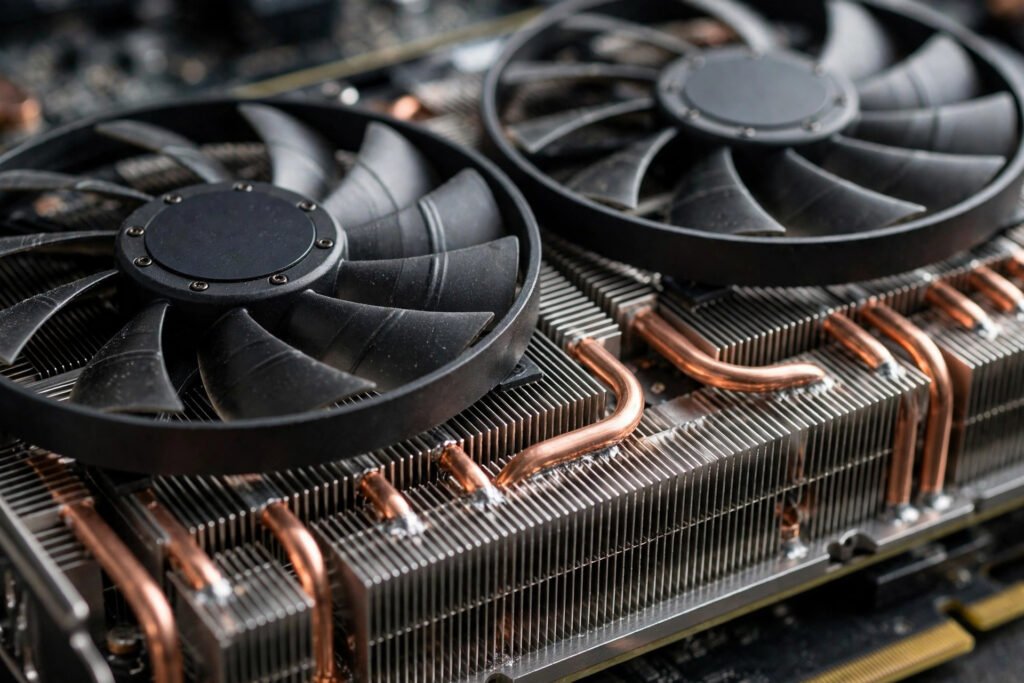
- Cooling and thermal cooling: Fans and heatsinks keep the card from overheating. A constantly overheating card slows itself down to protect itself, a behaviour called thermal throttling, so case airflow matters as much as the cooler on the card.
- Power supply: Dedicated cards draw significant power. Before buying, check your power supply can deliver enough wattage and has the right connectors — a boring check that prevents an expensive mistake.
Graphics APIs such as DirectX, Vulkan, and OpenGL are the software languages programs use to talk to the GPU. You rarely choose between them directly, but knowing the names helps when a game lists its requirements. Similarly, NVIDIA’s CUDA lets software use GPU cores for non-graphics computing, which is why some creative software lists specific GPU support.
Common Mistakes People Make With GPUs
Buying on VRAM alone. Two cards with the same VRAM can perform very differently. Look at real performance for your actual software, not a single number on a box.
Ignoring the power supply and case size. A card that does not fit, or that your power supply cannot feed, is a return waiting to happen. Measure the case, check the slot, and check the power connectors before ordering.
Assuming a new GPU fixes everything. If your processor is very old, storage slow, or system memory short, a new card may sit idle waiting for data. That is a bottleneck, and it can happen at either end.
Paying for performance you will never use. A top-end card for browsing, streaming, and documents is wasted money, heat, and noise. Match card to work, not marketing.
Forgetting the monitor. A card capable of high frame rates is wasted on an old, low-resolution monitor, just as a sharp monitor is wasted on a card that cannot drive it. Think of GPU and monitor as a pair.
Practical Checklist: What to Do Next
- Write down what you actually do — gaming, editing, 3D work, or everyday computing — and at what resolution.
- Find out what you have now: integrated graphics or a dedicated card, and how much VRAM.
- Identify the real bottleneck: stutter in games, editing effects, or everywhere?
- Check compatibility before buying: PCIe slot, case length, power supply wattage and connectors, and monitor inputs (HDMI or DisplayPort).
- To choose a graphics card, compare real-world performance for your specific programs, not just headline specifications.
- Make sure your case has decent airflow, so the card sustains performance instead of throttling.
- If you only browse, stream, and work in documents, save your money: integrated graphics are probably already enough.
Related Reading
Frequently Asked Questions
Do I need a graphics card?
Not necessarily. If you browse, watch videos, work in documents, and do light photo editing, integrated graphics are usually fine. You need a dedicated card mainly for gaming, serious video editing, 3D modelling, or other graphics-heavy work.
What does a GPU do in a computer?
It calculates and draws the images on your screen, and accelerates other parallel work such as video processing and 3D rendering. It takes drawing instructions, splits them across many small cores, and produces finished frames many times per second.
Is a GPU the same as a graphics card?
Almost, but not quite. The GPU is the processor chip itself. A graphics card is the complete board carrying the GPU, its VRAM, cooling, and display outputs. In everyday conversation the terms are used interchangeably, and usually everyone understands what is meant.
How much VRAM do I need?
It depends on resolution and workload. Everyday use and light gaming at 1080p need relatively little, while high-resolution gaming, large 3D scenes, and heavy editing benefit from more. Treat VRAM as one factor among several, not a score: a balanced card matters more than a big VRAM number on a weak card.
Can I upgrade the GPU in a laptop?
Usually not. Most laptops have graphics soldered in or integrated into the processor. Desktop PCs are different: a dedicated card in a PCIe slot can normally be swapped, provided the case, power supply, and motherboard support it.
A GPU is not a status symbol or a specification number. It is a specialist worker, and its value depends entirely on the work you give it. Buy for the job you actually do, check the rest of your system can support it, and you will get smooth playback and faster renders where it counts, instead of an expensive part that never gets to do its job.