Your phone flashes “storage full” just as you are about to photograph something you actually want to keep. So you start deleting — old screenshots first, then videos you meant to save, then photos you are not quite ready to lose. Cloud storage is the thing that is supposed to stop that panicked delete-and-hope routine.

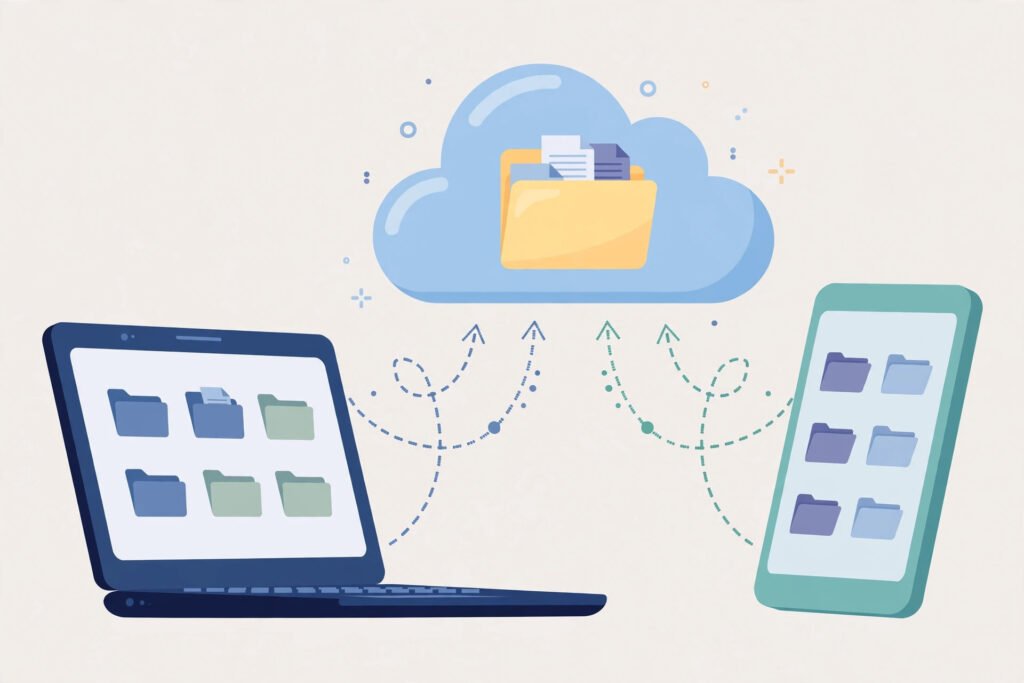
In short, cloud storage is online file storage: files stored online on computers run by a storage provider, in a data centre, instead of only on your own phone or laptop, with access from any device you sign in on. Your files are not literally floating in the sky. They sit on real disks in real buildings, managed by someone else, and your device becomes more of a window onto them than the only place they exist.
Table of Contents
What actually happens when you upload a file
People often picture an upload as a file being thrown into the cloud and vanishing. In practice it is a fairly ordinary journey, and understanding it makes the rest of this guide much easier.

First, when you upload files to cloud storage, your device breaks the file into pieces and sends those pieces over your internet connection to the provider’s servers. A strong connection makes this fast; a weak one makes it slow or prone to pausing, which is why large video uploads feel so different on home Wi-Fi compared with a patchy mobile signal. Second, the provider stores those pieces, usually on more than one disk, so that a single disk failure does not wipe out your file. Third, when you open the file again — on the same phone, on a laptop, or on a borrowed computer — the provider sends the pieces back and your device reassembles them. If you have turned on offline access, a copy is also kept on your device so you can open it without a connection, and changes are reconciled later.
Storage, backup and sync are not the same thing
This is the distinction that causes the most confusion, and the most lost files. A service can offer all three, but they do different jobs, and assuming one does another’s job is how people get caught out.
| What you are doing | What it means | The trap to avoid |
|---|---|---|
| Storing files online | Files live in your online account and you open them from there | Assuming a file in the cloud is automatically backed up elsewhere |
| Backing up | Copies are made regularly so you can restore after loss or damage | Assuming a backup runs when you never switched it on |
| Syncing | The same files are kept up to date across your devices | Deleting a synced file on one device and watching it vanish everywhere |
Think of it this way: storage is a cupboard, backup is a spare copy kept somewhere safe, and syncing keeps every cupboard holding the same things. File syncing is wonderful for working on a document at your desk and finishing it on your phone, but it is not a safety net on its own: if you delete a synced file and empty the trash, syncing will faithfully carry out that deletion everywhere. A proper cloud backup, by contrast, keeps versions and copies that survive an accidental delete, which is why checking whether your service offers version history and a trash or recycle bin with a recovery window matters more than the headline amount of storage space.
So, on cloud storage vs external hard drive, the honest answer is that they solve different problems. An external hard drive or USB flash drive is fast, works without the internet, and sits in your drawer. But if the drive is lost, stolen, damaged in a flood, or simply left at home, its files go with it. Online file storage is slower to reach on a poor connection and depends on a provider, but it survives a broken phone and lets you reach a file from another device. Many careful people use both: a local drive for speed and a cloud backup for the disaster case. Neither on its own is a complete plan.
A worked example: the photographer who stopped losing shoots
Consider a freelance photographer — call her Sara — who shoots a family event on a Saturday and edits on a laptop during the week. Before she changed her setup, her routine was familiar: photos lived on memory cards, then on her laptop’s SSD, and nowhere else. One laptop repair later, a week’s work was gone, and the hard drive she meant to buy was still on a shopping list.
Her new routine is deliberately boring, which is the point. She keeps memory cards untouched until files are copied, uploads the full set to a shared folder with automatic backup switched on for her edits folder, and sends the client sharing links to a finished selection, set to view-only — not the raw files. Her phone holds only previews, so she is not carrying every original around.
Is cloud storage safe?
The short answer is that it can be, provided you treat your account as the front door. Reputable providers protect files in transit and at rest with data encryption such as AES encryption, and well-known services such as Google Drive, Dropbox, Microsoft OneDrive and Apple iCloud all build their reputations on keeping accounts secure. Amazon S3 sits at the other end of the same idea: it is storage infrastructure that developers and businesses build on, rather than a consumer folder app, but the underlying principle — files kept on managed servers, reached over the internet — is the same.
Your side of the bargain matters just as much: a strong, unique password, two-factor authentication, and suspicion of any message asking you to sign in through a link. Much of what people call a “cloud hack” is really a phished password. On public Wi-Fi, avoid uploading sensitive documents, or use a VPN to encrypt your connection. And check sharing permissions before you send a link — “anyone with the link can edit” is effectively a public door.
Free cloud storage: what to check before you commit
Free cloud storage is genuinely useful, and for many people it is enough for documents and a modest photo library. The question is not whether free is bad, but whether the free storage plans fit your actual life. Start by checking how much storage space you already use — photos and video eat space far faster than documents — and whether the service counts email or other products against the same allowance. Then check what happens when you run out: does uploading simply stop, do new photos stop backing up silently, or do you get a clear warning?
Common mistakes (and the easy fix for each)
Treating sync as backup. Deleting a synced file deletes it everywhere. Fix: keep a separate backup copy, or at least check the version history and trash settings before you rely on sync alone.
Never checking that backup actually ran. “It backs up automatically” is only true if the feature is switched on, the device is charging, and there is room. Fix: once a month, open the service on another device and confirm a recent file is really there.
Sharing a whole folder when you meant to share one file. One careless link can expose years of documents. Fix: share the single file, set view-only access, and review your shared folders occasionally.

Using the same password everywhere. If one site leaks it, your file account is next. Fix: a unique password plus two-factor authentication, full stop.
Clicking sign-in links in unexpected emails. Fake storage alerts are a classic route to stolen accounts, and stolen accounts lead to stolen files or worse. If a message claims your account is full or locked, go to the service directly instead of clicking through. The same caution applies to anything that looks like malware bait — an urgent attachment or a “verify now” button.
Keeping only one copy of irreplaceable files. A child’s first-year photos or a thesis draft should never exist in exactly one place. Fix: cloud copy plus a local copy, checked now and then.
Your checklist: set this up in the next half hour
- Switch on automatic backup for your phone’s photos, and confirm one recent photo appears in your account on another device.
- Move current work into one synced folder, so remote file access works the same from your phone and your laptop.
- Turn on two-factor authentication and replace any reused password on your storage account.
- Share files securely with a view-only link to test the process, then check the permission you actually granted. A PDF contract, for example, is better shared this way than photographed and messaged.
- Open your trash or deleted-files area and note how long deleted files are kept for backup and restore, so a future accident is a nuisance rather than a disaster.
- If you use more than one service, write down — on paper or in a note — which service holds what, so you are not hunting through accounts in an emergency.
Cloud storage, at its best, is unglamorous: files where you expect them, a second copy you never had to think about, and sharing without posting a memory stick. Set it up once and check it occasionally, and it removes a whole category of everyday panic. If you want to understand the wider system it sits inside, read our guide to cloud computing, which explains the servers and services that make all of this possible.
Related Reading
FAQs
How does cloud storage work, in one paragraph?
You upload files over the internet to a provider’s servers, where they are stored on managed disks, often in more than one place. When you need a file, the provider sends it back to whatever device you are signed in on. Syncing lets files sync across devices, and offline copies let you work without a connection.
Is cloud storage safe for personal photos and documents?
Generally yes, if you do your part: a strong unique password, two-factor authentication, and careful sharing settings. Providers encrypt files in transit and at rest, but anyone who gets your password can walk straight past that protection, so account security matters more than the encryption label.
How to free up phone storage using the cloud?
Switch on camera backup, wait until the photos are confirmed in your account on another device, and only then use the service’s “free up space” option to remove local copies. Never delete locally first and hope the upload catches up — confirm first, delete second.
Can I recover deleted files from cloud storage?
Often, yes, within a window. Most services keep deleted files in a trash or recycle bin for a limited period, and some keep earlier versions of edited files. The window varies, so check it before you need it, and do not empty the trash in a panic.
What is the difference between cloud storage and cloud computing?
Cloud storage is about keeping files: a place to put documents, photos and backups. Cloud computing is broader — it is about running software and services on remote servers, from email and video streaming to whole business systems. Storage is one part of that bigger picture.