
A checksum error means the fingerprint of a file no longer matches the fingerprint it is supposed to have. When a file is created or published, a short value called a checksum (or hash) is calculated from its exact contents. Later, anyone can recalculate that value: if the two values match, the file is unchanged; if they differ, something altered the file along the way — a download was cut short, a disk wrote a bad sector, or the file you grabbed is simply a different version. The error itself does not tell you which of those happened, but it does tell you not to trust the file as it stands.
TL;DR / Key Takeaways
- A checksum is a fingerprint computed from a file’s exact contents; any change produces a different value.
- A checksum error means “this file is not the file you expected” — not automatically “this file is destroyed.”
- The most common cause is an incomplete or interrupted download; re-downloading usually fixes it.
- Never ignore a mismatch for installers, firmware, or anything that runs with system access.
- You can verify a file yourself in under a minute with built-in tools on Windows, macOS, and Linux.
How Does a Checksum Work?
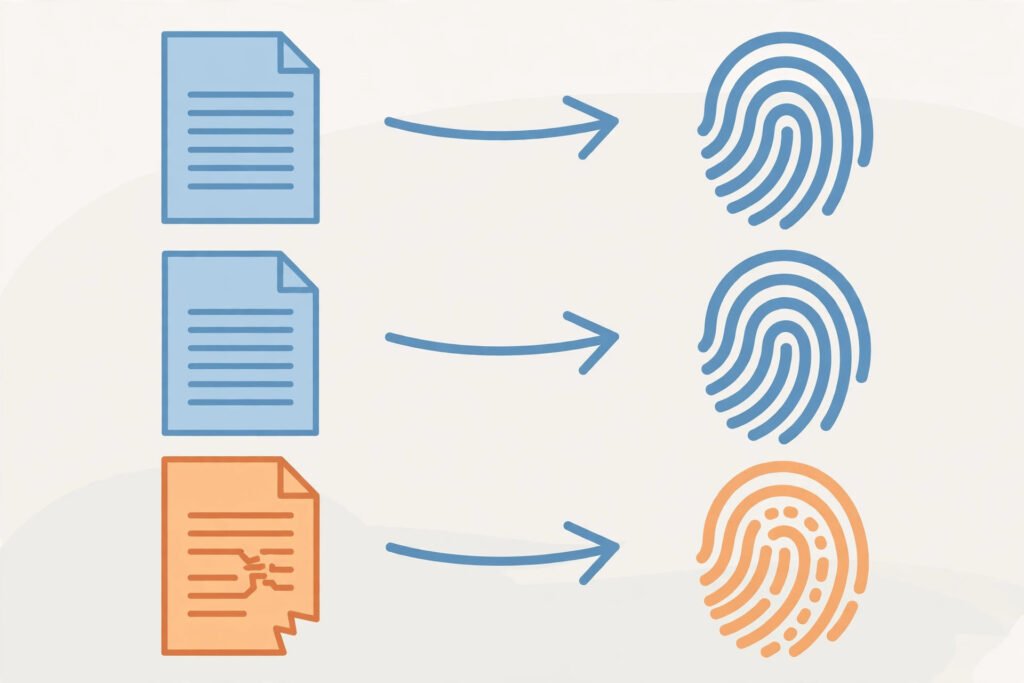
Think of a checksum like a fingerprint for a file. A checksum algorithm reads every byte of a file and produces a fixed-length string of characters, such as 9f86d081884c7d659a2feaa0c55ad015. Change even one byte — one letter in a document, one pixel in an image — and the output changes completely. That sensitivity is the whole point: the checksum lets you detect changes without comparing two huge files byte by byte.
Two algorithms you will meet most often are MD5 and SHA-256. MD5 produces a shorter 32-character value and is fast, but it is no longer considered secure against deliberate tampering, because attackers can craft two different files with the same MD5 value. SHA-256 produces a 64-character value and is the current standard for published software. For simply checking that a download arrived intact, either works; for security-sensitive downloads, prefer SHA-256, and always take the expected value from the publisher’s own site, not from a random forum post.
The process is always the same: the publisher publishes the file and its checksum side by side. You download the file, compute its checksum on your machine, and compare. Match means the file arrived exactly as published. Mismatch means stop and investigate.
What Causes a Checksum Error?
Most checksum errors are boring, everyday failures rather than attacks. Here are the usual suspects, in rough order of likelihood:
An interrupted or incomplete download. A connection drops, a browser tab closes, or a download manager resumes badly, and you end up with a file that is missing its tail. The file may even look complete and open partway, but its fingerprint will not match.
A different file than the one the checksum belongs to. You downloaded version 2.1 while the checksum on the page is for version 2.0, or you grabbed the 32-bit build while the checksum is for the 64-bit build. The file is fine; it is just not the file the checksum describes.
Storage or memory faults. A failing drive, a bad sector, or faulty RAM can flip bits while a file is written or read. If the same file fails its checksum repeatedly after fresh downloads, suspect the hardware, not the download.
Corruption during transfer or extraction. Copying across a flaky USB stick, a damaged archive, or a bad network share can alter bytes. Unzipping a damaged archive and then checking the extracted files will also fail, because the damage happened before extraction.
Deliberate tampering. This is the rarest cause for ordinary users, but it is the one that matters most: a file replaced on a mirror or intercepted in transit will fail its checksum, and that failure is doing its job. This is why you should never ignore a mismatch on an installer, a firmware update, or a security tool.
Does a Checksum Error Mean the File Is Corrupt?
Not necessarily. It means the file differs from the expected one, and “corrupt” is only one possible reason. Use this order to find out which:
- Check the file size first. If the downloaded file is smaller than the size listed by the publisher, the download simply did not finish. Delete it and download again.
- Confirm you have the right file and the right checksum. Match the version, edition, and architecture (for example 64-bit versus ARM) on both sides. A mismatch here explains the error completely.
- Re-download from the publisher’s own site. If the second download matches, the first one was damaged in transit and the story is over.
- Try a different browser, network, or mirror. If downloads fail on one network but succeed on another, the problem is in the path, not the file.
- If every fresh download still fails, suspect your hardware. Run a disk health check and, if you are comfortable, a memory test. A drive that is starting to fail will keep producing bad files.
Only after those steps should you consider the file genuinely corrupt or tampered with — and in that case, the correct response is to discard it, not to force it open.
How Do I Verify a Checksum Myself?
You do not need extra software. Every major operating system has a built-in tool.
On Windows
- Open Command Prompt or PowerShell.
- Run
certutil -hashfile "C:\path\to\file.iso" SHA256(replace the path and use MD5 if the publisher only gives an MD5 value). - Compare the printed value with the publisher’s value, character by character. Even one differing character means a mismatch.
On macOS
- Open Terminal.
- Run
shasum -a 256 /path/to/filefor SHA-256, ormd5 /path/to/filefor MD5. - Compare the result with the published value.
On Linux
- Open a terminal.
- Run
sha256sum /path/to/file(ormd5sumfor MD5). - Compare the result with the published value.
A useful shortcut on macOS and Linux: put the published checksum and the filename in a file and use the -c check mode (sha256sum -c), which reports OK or FAILED for you.

What Should I Do When a Checksum Fails?
| Situation | Most likely cause | First step |
|---|---|---|
| File size is smaller than listed | Interrupted download | Delete and re-download |
| Size matches, checksum differs | Wrong version, or transfer damage | Confirm version and checksum, then re-download |
| Second download also fails | Network path or mirror problem | Try another browser, network, or official mirror |
| Every download fails on this machine | Disk or memory fault | Check disk health and memory |
| Installer or firmware mismatch | Possible tampering | Do not install; get the file from the publisher only |
Never bypass the warning by editing the checksum, disabling verification, or installing anyway “just to see.” For ordinary documents the risk is a garbled file; for installers and firmware it can be a compromised system. The guide to what is malware explains why running an untrusted file is the one mistake that turns a small problem into a big one, and the guide to what is cache explains why a stale saved copy can make a page — or a download — behave oddly even when the source is fine.
Checklist: Fixing a Checksum Error
- Compare the file size with the publisher’s listed size.
- Confirm version, edition, and architecture match the checksum you are using.
- Re-download from the publisher’s own site, not a third-party mirror.
- Verify again with the built-in tool for your system.
- If it still fails, try a different browser or network.
- If it fails on every attempt, check your disk and memory health.
- For installers and firmware: if it still mismatches, do not install — find another official source.
Summary
A checksum error is a warning, not a verdict. It tells you the file in front of you is not byte-for-byte the file the publisher released. Most of the time the fix is simple — re-download, confirm the version, and verify again — and the file turns out fine. The discipline that matters is never ignoring the warning on anything that runs on your system: a checksum takes a minute to check and can be the only thing standing between you and a tampered installer.
Frequently Asked Questions
What is a checksum error?
A checksum error means a file’s computed fingerprint does not match its expected fingerprint. The file has changed since the checksum was published, whether through an interrupted download, a wrong version, storage damage, or tampering.
Does a checksum error mean the file is corrupt?
Not always. It means the file differs from the expected one. An incomplete download or a version mix-up causes the same error as genuine corruption, so check the file size and version before concluding the file is damaged.
How do I fix a checksum error?
Delete the file and re-download it from the publisher’s own site, then verify again with your system’s built-in tool. If the second download matches, the first was damaged in transit. If it keeps failing, try another network or mirror, and check your disk health.
Can I use a file with a checksum mismatch?
For a plain document you can try, but expect garbled content. For installers, firmware, or security software, no — a mismatch is exactly the warning that should stop you, because it can mean the file was altered.
What is the difference between MD5 and SHA-256?
Both compute a fingerprint from a file’s contents. MD5 is older and faster with a 32-character output, but it is no longer trusted against deliberate tampering. SHA-256 gives a 64-character output and is the current standard for published software.